

The Perfect Moment Ruined
It's that perfect moment.
The lighting is absolutely perfect. You look amazing. The sunset behind you is breathtaking. You've already picked the perfect song and know exactly where those cute stickers will go.
You hit record. Nailed it in one take. Added your text. Adjusted the filter. Selected the song. Everything is flawless.
You tap "Share to Story."
The upload circle starts spinning.
And spinning.
And spinning.
Five seconds. Ten seconds. Thirty seconds.
"Uploading..."
You wait. You watch. The circle keeps spinning, but nothing happens.
Then: the dreaded message.
"Couldn't Upload Story. Tap to Retry."
You try again. Fails again.
You force close the app. Reopen it. Try again. Still nothing.
The perfect moment is slipping away. The light is changing. Your frustration is mounting. And that story you were supposed to post RIGHT NOW is just sitting there in limbo, mocking you.
If this scenario feels painfully familiar, you're not alone. Instagram story upload failures are one of the most common and frustrating issues on the platform. And the worst part? There are about fifteen different things that could be preventing your stories from uploading.
The good news? Almost every Instagram story upload problem has a solution. And I'm going to show you every single one.
By the end of this guide, you'll know exactly why your story isn't uploading and how to fix it—whether it's a simple connection issue or something more complex like a shadowban or account restriction.
Let's figure out what's wrong and get your stories back online.
The dreaded "Couldn't Upload Story" message that ruins perfect moments
Quick Checklist (For People Who Need Answers NOW)
If you're in a rush and want to try the most common fixes first, start here:
- Check your internet connection- Switch between Wi-Fi and cellular data
- Force close and reopen Instagram- Sometimes that's literally all it takes
- Update Instagram- Check App Store or Google Play for updates
- Clear Instagram's cache- Settings > Apps > Instagram > Clear Cache (Android)
- Restart your phone- The classic "turn it off and on again" actually works
- Check if Instagram is down- Visit downdetector.com/status/instagram
- Verify storage space- Make sure your phone has at least 2GB free
- Confirm video length- Regular stories must be under 60 seconds
- Try uploading without music or stickers- Test if it's a content issue
- Uninstall and reinstall Instagram- Nuclear option if nothing else works
The Complete List of Why Instagram Stories Won't Upload
Let's go through every possible reason your Instagram story might not be uploading, starting with the most common culprits and moving toward the more obscure ones.
1. Poor or Unstable Internet Connection
This is the #1 culprit, and it's so obvious that people often overlook it.
Instagram stories, especially video stories, require a strong, stable internet connection to upload. If your connection is weak, intermittent, or keeps dropping, your story will get stuck in upload limbo.
🔍How to Tell This Is Your Problem
- Other apps are also loading slowly
- You see "Uploading..." but the progress bar barely moves
- Your Wi-Fi signal shows only 1-2 bars
- You're in a location with notoriously poor service (basement, elevator, rural area)
- Upload works fine when you're on a different network
✅How to Fix It
Try Switching Networks
- Switch from Wi-Fi to cellular data
- Or switch from cellular data to Wi-Fi
- Sometimes one works when the other doesn't, even if both show "connected"
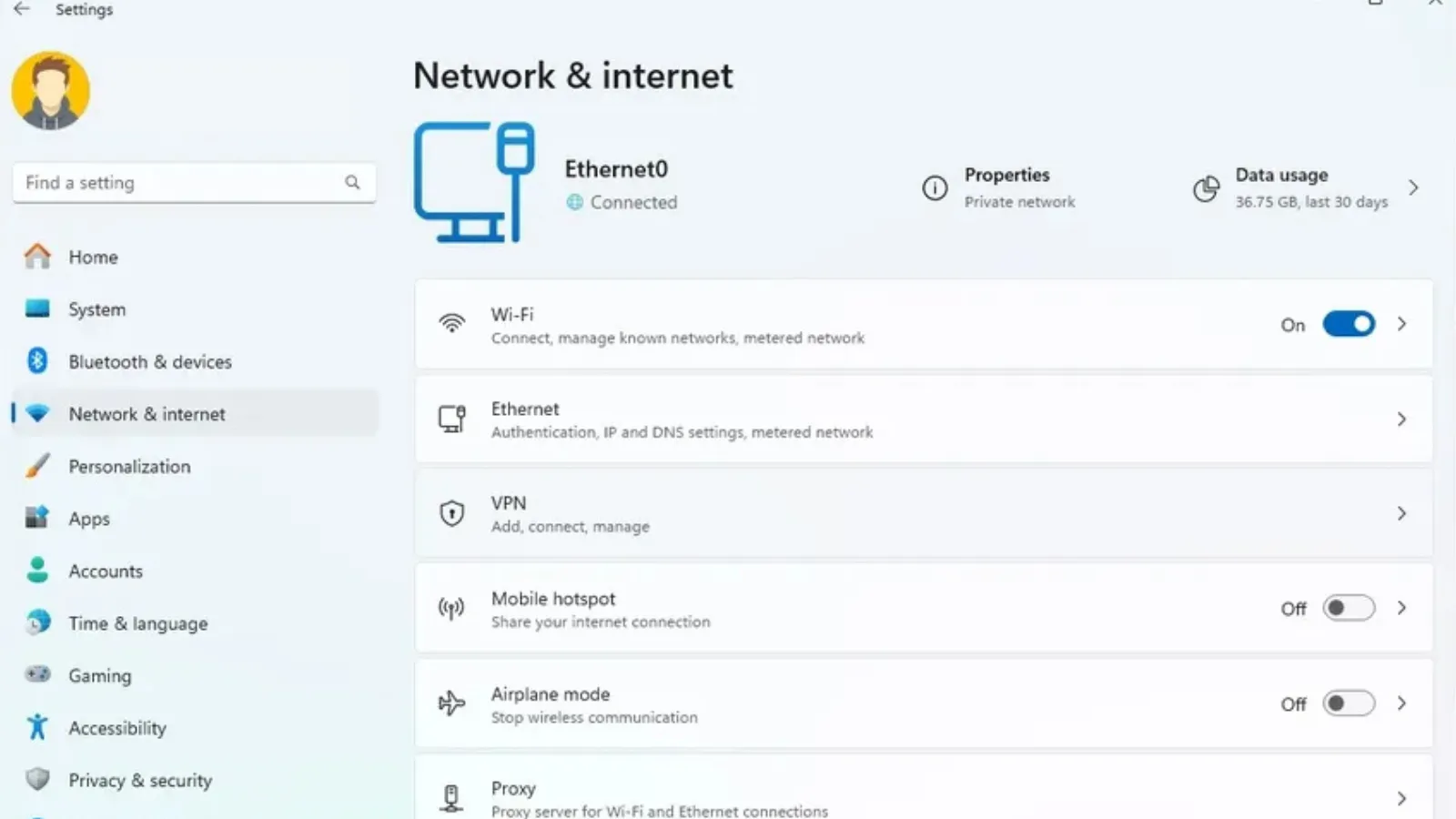
Switch between WiFi and cellular data to test which connection works better
Reset Your Connection
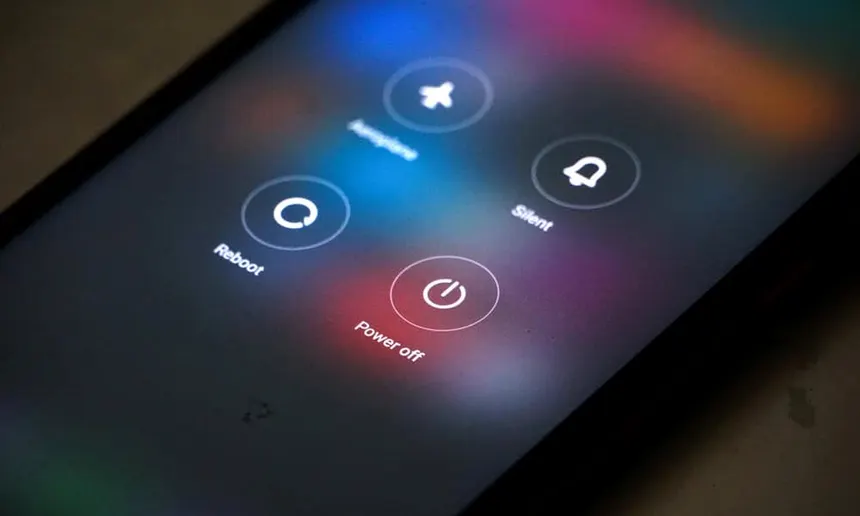
- Turn airplane mode ON for 10 seconds, then turn it OFF
- This forces your phone to reconnect, which sometimes clears connection glitches
Move to a Stronger Signal Area
- Get closer to your Wi-Fi router
- Move away from walls or electronics that might interfere
- If you're in a building with thick walls, step outside
- If you're in a basement or interior room, find a window
Test Your Connection Speed
- Visit speedtest.net or fast.com
- Instagram typically needs at least 1-2 Mbps upload speed for stories
- If your upload speed is below 1 Mbps, that's likely your problem
Wait and Try Again
- If you're at a crowded event (concert, stadium, conference), cell towers can get overwhelmed
- Wait until crowds thin out or move to a less congested area
2. Instagram App Needs Updating
Instagram constantly rolls out new features, bug fixes, security patches, and algorithm adjustments. If you're running an outdated version of Instagram, upload failures are common.
🔍How to Tell This Is Your Problem
- Your Instagram looks slightly different from screenshots you see online
- Friends have features you don't have
- The app has been acting buggy in other ways too
- You haven't opened Instagram in weeks or months
✅How to Fix It
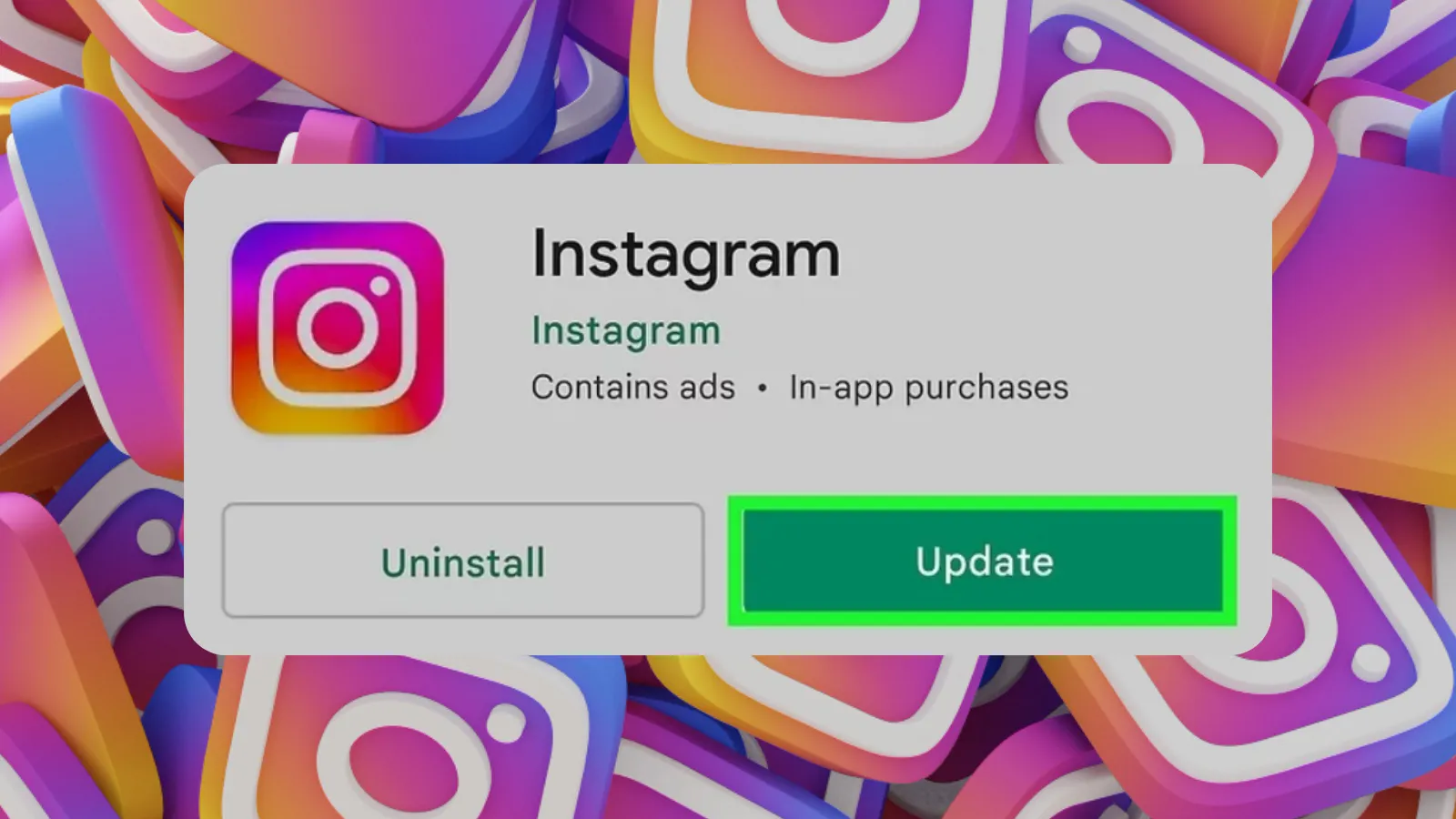
Check for Instagram updates in your device's app store
For iPhone:
Open the App Store
Tap your profile icon in the top right corner
Check Pending Updates
Scroll down to see if Instagram appears in the list
Update Instagram
If Instagram is listed, tap "Update" — if it's not listed, you're already on the latest version
For Android:
Open Google Play Store
Tap your profile icon in the top right
Manage Apps & Device
Select "Manage apps & device" from the menu
Check for Updates
Look under "Updates available" — if Instagram is listed, tap "Update"
Enable Automatic Updates:
- iPhone:Settings > App Store > App Updates (turn ON)
- Android:Play Store > Profile > Settings > Network preferences > Auto-update apps
After updating, force close Instagram and reopen it before trying to upload your story again.
3. Full or Corrupted App Cache
Instagram stores temporary data (cache) on your phone to make the app faster. But over time, this cache can become bloated or corrupted, leading to all sorts of issues—including upload failures.
🔍How to Tell This Is Your Problem
- Instagram has been sluggish or glitchy lately
- You're experiencing other Instagram features acting weird
- The app occasionally crashes
- You haven't cleared cache in months (or ever)
✅How to Fix It
For Android:
Open Settings
Settings > Apps > Instagram
Access Storage
Tap "Storage"
Clear Cache
Tap "Clear Cache" (NOT "Clear Data" unless you want to log out)
Reopen Instagram
Force close and reopen Instagram, then try uploading again
For iPhone:
Unfortunately, iOS doesn't have a built-in way to clear app cache without deleting the app. Your options:
Option 1: Offload the App (keeps data)
- Settings > General > iPhone Storage
- Find Instagram
- Tap "Offload App"
- Tap "Reinstall App"
Option 2: Delete and Reinstall (more thorough)
- Delete Instagram
- Restart your phone
- Reinstall Instagram from App Store
- Log back in
4. Insufficient Phone Storage
Instagram needs temporary free space to process and upload your stories. If your phone is nearly full, uploads will fail.
🔍How to Tell This Is Your Problem
- You're getting "Storage Almost Full" warnings
- Your phone has been running slowly
- You can't take new photos because storage is full
- Other apps are also acting weird
✅How to Check Your Storage
iPhone:
- Settings > General > iPhone Storage
- Look at the storage bar at the top
- If you have less than 1-2GB free, you likely have a problem
Android:
- Settings > Storage
- Check "Available space"
- Less than 1-2GB free will cause issues
Check your phone's storage and free up space if you're running low
✅How to Fix It
Quick Wins:
- Delete old photos and videos (back them up to cloud first)
- Remove apps you don't use
- Clear browser cache in Safari/Chrome
- Delete old text messages with photo/video attachments
- Remove downloaded content from Netflix, Spotify, etc.
Instagram-Specific:
- Clear Instagram cache (see previous section)
- Go through saved posts and remove ones you don't need
- If you haven't cleared Instagram in a while, it can consume 2-5GB
After you've freed up space, restart your phone and try uploading again.
5. Video Too Long or File Too Large
Instagram has specific requirements for story uploads:
- Duration:Maximum 60 seconds per clip for regular stories
- File Size:Generally under 4GB, but Instagram recommends under 100MB for best performance
- Resolution:1080 x 1920 pixels (9:16 aspect ratio) is optimal
- Format:Video: MP4 or MOV; Photos: JPG or PNG
🔍How to Tell This Is Your Problem
- Your video is longer than 60 seconds
- You're uploading a 4K video filmed on a professional camera
- The file size is unusually large
- You filmed the video in a high-bitrate format
✅How to Fix It
Trim the Video:
- Use your phone's video editor to trim it to under 60 seconds before uploading
- Instagram will automatically split longer videos into segments if they're over 15 seconds, but this doesn't always work smoothly
Compress the Video:
- Use a video compression app (Video Compressor for Android, Video Compress for iPhone)
- Reduce the resolution slightly (1080p is perfect for stories; 4K is overkill and makes uploading difficult)
Convert the Format:
- If your video is in an uncommon format, use a free converter app to change it to MP4
- Most modern phones shoot in compatible formats, but if you're uploading from a DSLR or external camera, format could be an issue
Export at Lower Quality:
- If you edited the video in a video editing app, export using "Instagram Story" quality settings instead of maximum quality
6. Copyright & Content Detection Issues
Instagram's automated content detection system sometimes flags stories it thinks violate copyright—even when they don't.
🔍How to Tell This Is Your Problem
- Your story has music from Instagram's music library but still won't upload
- You're using a popular song
- Your story contains copyrighted content like TV shows, movies, sports broadcasts
- You're getting a message about content issues
Copyright detection can prevent stories with certain music or content from uploading
✅How to Fix It
Remove the Music:
- Try uploading the same story without music
- If it works without music but not with it, that's your answer
- The song might be temporarily restricted for stories or in your region
Try Different Music:
- Some songs in Instagram's library can't be used in stories, only in Reels
- Try a different song or use your video's original audio
Avoid Copyrighted Content:
- Don't film TV screens or movie theaters
- Don't use clips from copyrighted shows or sports broadcasts
- Instagram can detect even short clips
Remove Branded Content:
- If your story has heavy branded products or logos, Instagram might flag it as unauthorized advertising
- This doesn't happen often, but it does happen
Appeal If You Think It's a Mistake:
- If you get a violation notice but think you're in the right, you can appeal through Instagram's support
7. Account Restrictions or Shadowban
If Instagram has temporarily restricted your account or you've violated community guidelines, you might not be able to post stories.
🔍How to Tell This Is Your Problem
- You can post to your feed but not to stories
- You recently received a warning from Instagram
- Your account engagement has dropped dramatically
- You can't use certain features (music, polls, links)
- You've been using third-party automation tools
✅How to Fix It
Check for Violations:
- Settings > Account > Account Status
- This will show if you have any active restrictions or violations
Stop Suspicious Activity:
- Stop using third-party apps that auto-like or auto-follow
- Don't use bots or automation tools
- Avoid excessive use of hashtags or comments
- Don't post repetitive content
Wait It Out:
- Temporary restrictions typically last 24-48 hours
- In some cases, they can last up to 2 weeks
- During this time, reduce your activity and don't try to circumvent the restriction
Appeal the Restriction:
- Settings > Help > Report a Problem
- Explain the situation and request a review
- Be polite and specific
- Response times can range from a few days to weeks
Review Community Guidelines:
- Understand what you did wrong so you don't repeat it
- Find Instagram's guidelines at help.instagram.com/477434105621119
Keep Your Content Clean:
- Post original, high-quality content
- Avoid borderline content (sexually suggestive, violent, promoting prohibited items)
- Be authentic in your engagement
8. Instagram's Servers Are Down
Sometimes the problem isn't you at all—it's Instagram's servers.
🔍How to Tell This Is Your Problem
- Multiple people you know are experiencing the same issue simultaneously
- Other Instagram features aren't working either (can't refresh feed, can't send DMs)
- It started suddenly with no changes on your end
- The problem happens on both Wi-Fi and cellular data
✅How to Check If Instagram Is Down
Visit DownDetector:
- Go to downdetector.com/status/instagram
- If there's a spike in reported issues, Instagram is likely down
- Check the outage map to see if it's global or regional
Check Twitter/X:
- Search for "Instagram down" on Twitter
- If thousands of people are tweeting about it, it's not just you
Check Instagram's Official Accounts:
- Sometimes Instagram announces outages on their @instagram Twitter account
✅How to "Fix" It
- Wait.That's literally all you can do
- Server issues are usually resolved within 30 minutes to a few hours
- Don't keep trying to upload; it could make things worse when service returns
- Save your story as a draft and post when Instagram is back up
9. Your Account Is Too New
Instagram sometimes limits features for brand new accounts to prevent spam.
🔍How to Tell This Is Your Problem
- You created your account very recently (within the last 24-48 hours)
- You can do basic things but some features are limited
- You're trying to use advanced features (music, links, polls) but they're not available
✅How to Fix It
Wait 24-48 Hours:
- Most new account restrictions lift automatically after a day or two
- Use this time to complete your profile setup
- Post to your feed and engage with other accounts normally
Verify Your Account:
- Add a phone number: Settings > Account > Personal Information > Phone Number
- Add an email: Settings > Account > Personal Information > Email
- Verified contact info makes Instagram trust your account faster
Connect to Facebook:
- Settings > Account > Sharing to Other Apps > Facebook
- Linking to an established Facebook account adds credibility
Complete Your Profile:
- Add a profile picture
- Write a bio
- Post at least one photo to your feed
- This signals you're a real person, not a spam bot
Take It Slow:
- Don't follow 100 people immediately
- Don't post 20 stories right away
- Don't use excessive hashtags
- Act like a normal user would
10. Business Account Limitations
If you have a business or creator account, certain features might not be available depending on your account settings or location.
🔍How to Tell This Is Your Problem
- You have a business or creator account
- The music library is limited or unavailable
- Certain stickers or features are grayed out
- The problem started after switching to a business account
✅How to Fix It
Check Music Availability:
- In some countries, business accounts can't access Instagram's full music library
- This is due to licensing issues, not a bug
Temporarily Switch to Personal:
- Settings > Account > Switch Account Type
- Switch to Personal
- Try uploading your story
- You can switch back to Business after
Use Original Audio Instead:
- Use your video's original audio instead of Instagram's music library
- Or add music before uploading using a video editing app
Check Your Region:
- Some features roll out to personal accounts before business accounts
- Some features aren't available in all countries yet
- VPNs don't usually help with this
Review Business Account Restrictions:
- Business accounts have different terms of service
- Make sure you're following commercial and advertising guidelines
11. Third-Party App Interference
Sometimes third-party apps you use for scheduling posts, editing stories, or managing your account can interfere with Instagram's native upload process.
🔍How to Tell This Is Your Problem
- You recently installed a new Instagram-related app
- You're using scheduling apps like Hootsuite, Buffer, Later, etc.
- You're using apps to create stories with templates or designs
- You have multiple apps connected to your Instagram account
✅How to Fix It
Disconnect Third-Party Apps:
- Settings > Security > Apps and Websites
- See what apps are connected
- Remove any you don't use or trust
Try Uploading Directly from Instagram:
- Instead of using a third-party story creator, create the story in Instagram's native app
- Third-party apps often export stories in formats Instagram doesn't like
Temporarily Disable Scheduling Tools:
- If you use scheduling tools, disconnect them temporarily
- Try uploading directly
- Reconnect them if that wasn't the issue
Use Instagram's Built-In Tools:
- Instagram's native story editor is actually quite good now
- Text, stickers, and music from the built-in app work better than third-party alternatives
12. Incorrect Date & Time Settings
This sounds weird, but if your phone's date and time settings are wrong, uploads can fail because Instagram's servers reject uploads with mismatched timestamps.
🔍How to Tell This Is Your Problem
- Your phone's date or time is significantly wrong
- You recently traveled across time zones and didn't update
- You manually set your phone's time instead of using automatic
- Other apps are also having issues
✅How to Fix It
For iPhone:
- Settings > General > Date & Time
- Turn ON "Set Automatically"
- Verify the time zone is correct
For Android:
- Settings > System > Date & Time
- Turn ON "Automatic date & time"
- Turn ON "Automatic time zone"
After Fixing:
- Force close Instagram
- Restart your phone
- Reopen Instagram and try uploading again
13. Limited Instagram App Permissions
If Instagram doesn't have proper permissions on your phone, it can't access your camera, photos, or microphone—which means it can't upload stories.
🔍How to Tell This Is Your Problem
- Instagram keeps asking for permission every time you try to use a feature
- You can't access your camera roll from Instagram
- Photos in Instagram are blurry or won't load
- You recently denied Instagram permissions
✅How to Fix It
For iPhone:
- Settings > Instagram
- Make sure these are enabled:
- • Photos: "All Photos" or "Selected Photos"
- • Camera: ON
- • Microphone: ON (for video stories)
- If they're already on, toggle them off and back on
For Android:
- Settings > Apps > Instagram > Permissions
- Make sure these are allowed:
- • Camera
- • Microphone
- • Storage
- Switch from "Ask every time" to "Allow"
After Adjusting:
- Force close and reopen Instagram
- Try creating a story again
14. Wrong Aspect Ratio or Story Format
Instagram stories are designed for a specific aspect ratio: 9:16 vertical. If your video or photo is the wrong size or orientation, Instagram might have trouble processing it.
🔍How to Tell This Is Your Problem
- Your photo or video is in landscape orientation
- You're uploading a square (1:1 ratio) photo
- The image has an unusual size or resolution
- Instagram keeps cropping your photo strangely
✅How to Fix It
Resize Before Uploading:
- Use apps like Canva, InShot, or Adobe Express
- Resize to 9:16 ratio (1080 x 1920 pixels)
- Or let Instagram fill in the background
Shoot Vertically:
- Always record stories in portrait/vertical orientation
- This is Instagram's default expected format
Use Instagram's Camera:
- Instagram's in-app camera automatically shoots in the correct format
- If you shoot with your phone's camera app, you need to be more careful about format
Let Instagram Crop It:
- If you upload a horizontal video, Instagram will add blurred bars to top/bottom
- This works, but it's not ideal
- Better to resize beforehand
15. You've Hit Daily Upload Limits
Instagram has hidden rate limits to prevent spam. If you upload too many stories in a short period, you might get temporarily blocked.
🔍How to Tell This Is Your Problem
- You've posted 20+ stories in the last few hours
- You've been uploading and deleting stories repeatedly
- You're using automation to post stories
- Earlier stories uploaded fine, but now they're failing
✅How to Fix It
Slow Down:
- Wait a few hours before trying again
- Instagram's limits usually reset after 24 hours
- Posting 10-15 stories per day is generally safe
Space Out Your Posts:
- Don't post 10 stories in 10 minutes
- Spread them out over several hours
- Quality over quantity
Don't Delete and Reupload Repeatedly:
- It's better to leave a mistake up than to delete and reupload 5 times
- Repeated deletions trigger spam filters
Avoid Automation:
- Don't use tools or bots that auto-post stories
- Instagram detects this and will restrict your account
The Nuclear Option: Step-by-Step Complete Reset
If you've tried everything above and your story still won't upload, here's the nuclear option—a complete reset and troubleshooting process:
Test Your Connection
Try uploading a simple photo to your story (no music, no stickers, no text). If this works, the problem is with content, not connection. If this doesn't work, the problem is connection or account-related.
Clear Everything
Clear Instagram cache (Android) or offload app (iPhone). Clear your phone's system cache: Settings > Storage > Cached Data > Clear. Do a full phone restart (not just sleep mode).
Update Everything
Update Instagram to latest version. Update your phone's OS (iOS or Android). Restart after updating.
Check Account Status
Settings > Account > Account Status. Look for any violations or restrictions. If you see restrictions, you have to wait them out.
Reinstall Instagram
Uninstall Instagram completely. Restart your phone. Reinstall from App Store or Google Play. Sign back in. Try uploading.
Test with Different Account
Log in with a different Instagram account (or create a test account). Try uploading the same story. If it works on another account, the problem is with YOUR account. If it doesn't work, the problem is with your device or network.
Try a Different Device
Log into your Instagram account on a different phone or tablet. Try uploading the story. If it works on another device, the problem is with YOUR phone. If it doesn't work, there's an account-specific issue.
Contact Instagram Support
If nothing else has worked: Settings > Help > Report a Problem. Explain the issue in detail. Include what you've already tried. Be patient; responses can take days.
How to Prevent Story Upload Failures
Once you've fixed it, here's how to prevent it from happening again:
📱Keep Instagram Updated
- Enable automatic app updates
- If automatic updates are off, check for updates weekly
💾Manage Storage Proactively
- Regularly delete old photos and apps
- Always maintain at least 2-3GB free space
- Clear Instagram cache monthly
🎥Optimize Content Before Uploading
- Shoot in 9:16 vertical format
- Keep videos under 60 seconds
- Use Instagram's built-in camera when possible
- Compress large files before uploading
✅Maintain Account Health
- Don't use bots or automation
- Follow Instagram's community guidelines
- Avoid excessive hashtags or spam comments
- Be authentic in your engagement
📶Use Stable Connections
- Upload on Wi-Fi when possible
- Avoid uploading in crowded areas with weak signal
- Don't upload while moving (in car, train, etc.)
💾Create Backups
- Save important stories to your camera roll before uploading
- Use Instagram's "Save to Archive" feature
- This way you won't lose content if uploads fail
🧪Test Before Important Posts
- If you have a time-sensitive or important post, test with a quick story first
- Verify everything is working before uploading your real content
Building a Consistent Instagram Presence Despite Technical Issues
If you're building an Instagram presence for business, personal branding, or creative expression, dealing with technical issues like upload failures is frustrating but unavoidable.
What successful Instagram accounts understand:
Everyone deals with bugs, glitches, and failed uploads. The difference between successful accounts and frustrated ones is that successful accounts are persistent and know how to troubleshoot.
If a story upload fails, fix it quickly and move on. Don't let technical problems stop you from posting for days.
They will remember if you disappear for a week because you were frustrated with Instagram.
If your stories keep failing because they're massive 4K files shot on professional gear, that might be overkill for Instagram stories anyway. Simpler, more digestible content often performs better.
Don't rely solely on stories. Post to your feed, create Reels, engage in comments. If one feature isn't working, you can still stay active.
At GTR Socials, we help businesses and creators grow their Instagram accounts in authentic, sustainable ways that survive technical glitches, algorithm changes, and platform instability.
The reality is Instagram will always have issues. Servers will go down sometimes. Updates will break things sometimes.
The accounts that succeed long-term are the ones that:
- Troubleshoot problems quickly instead of dwelling on them
- Stay consistent even when things aren't perfect
- Focus on creating value for their audience
- Build engaged communities, not just follower counts
- Understand that social media growth is a marathon, not a sprint
If you're serious about Instagram growth, failed uploads are just speed bumps, not roadblocks. Fix the technical issue, post your content, and keep moving forward.
And if you need help building an Instagram presence that's resilient, engaged, and growing authentically, we're here to help you navigate both the technical challenges and the strategic growth opportunities.
🚀 Ready to Build a Resilient Instagram Presence?
Technical issues happen to everyone. The difference is having strategies and support to grow consistently despite the glitches. Let GTR Socials help you build authentic engagement that lasts.
Frequently Asked Questions
Why does my Instagram story keep saying "uploading" but never actually uploads?
This usually indicates a connection or file issue. Try switching between Wi-Fi and cellular data, restarting Instagram, or uploading a simpler version of the story without music or effects. If the upload bar isn't moving at all, the problem is likely your internet connection.
Can I recover a story that failed to upload?
If you created the story in Instagram's app and it failed, Instagram usually auto-saves it in drafts (swipe up when creating a new story). If you created it outside Instagram and it failed, check your camera roll—the content might still be there. Instagram doesn't permanently store failed uploads.
Why do my Instagram stories upload sometimes but not other times?
Inconsistent upload success could be due to fluctuating internet speeds or intermittent Instagram server issues. It could also mean you're hitting rate limits if you're posting many stories in a short time.
Will I get banned for repeatedly trying to upload a failing story?
No, you won't get banned for attempting to upload legitimate content. However, if you keep uploading content that violates guidelines (even if it fails), your account could get restricted. If a story keeps failing, try uploading something different to see if the issue is story-specific or platform-wide.
Why can I upload photos to my Instagram story but not videos?
Videos require more processing power, storage space, and upload bandwidth than photos. If videos fail but photos work, the issue is likely file size, video length (over 60 seconds), format compatibility, or insufficient phone storage.
Does Instagram compress stories that fail to upload?
Instagram compresses all uploads automatically, but if the upload fails completely, no file is uploaded at all—so no quality is lost. If you're experiencing quality issues, it's from Instagram's compression after successful upload, not from failed attempts.
Why do my Instagram stories upload fine from my iPad but not from my iPhone?
This suggests a device-specific problem on your iPhone. It could be insufficient storage, outdated iOS version, corrupted Instagram installation, or different network connection quality. Try the troubleshooting steps on the failing device.
Does using a VPN prevent Instagram stories from uploading?
Yes. VPNs can slow your connection and sometimes trigger Instagram's security systems, which can block uploads or restrict your account. Try temporarily disabling your VPN to see if uploads work without it.
Why can't I add music to my Instagram story before posting?
Music availability depends on your account type (business vs personal), location, and licensing agreements. Business accounts in some regions have limited music access. Try switching to a personal account temporarily or use original audio instead of Instagram's music library.
How long should I wait before retrying a failed story upload?
If it failed due to connection issues, wait 30 seconds to a minute before retrying. If it failed due to account restrictions, wait 24 hours. If the problem is Instagram's servers, wait 30 minutes to an hour before checking again.
Can third-party apps cause Instagram story upload failures?
Yes. Scheduling tools, automation apps, or story creation apps can interfere with Instagram's native upload process. Try disconnecting third-party apps temporarily and uploading directly from Instagram.
Why do my stories with copyrighted music fail to upload?
Instagram's copyright detection system automatically blocks content it identifies as violating copyright—even if the music is from Instagram's own library. Some songs are restricted in certain regions or for stories (but allowed in Reels). Try different music or upload without music.
What does "couldn't upload story, tap to retry" actually mean?
This generic error message can mean many things: poor connection, file too large, copyright issue, account restriction, or Instagram server problem. Work through the troubleshooting checklist to identify the specific cause.
Can I upload Instagram stories from desktop?
Yes, but with limitations. Instagram's web version has limited story functionality. Upload failures are more common on desktop than mobile. For best results, use the Instagram mobile app.
Why does my story upload fail only when I add stickers or text?
This could be a temporary Instagram bug or corrupted cache. Try clearing Instagram's cache, updating the app, or creating the story completely fresh (don't edit a saved draft). If adding specific stickers fails consistently, those stickers might be temporarily broken.
The Bottom Line: Fix It Fast, Move On Faster
Here's what I want you to remember:
Instagram story upload failures are frustrating, but they're almost always fixable. Most of the time, it's a connection issue, storage problem, format issue, or temporary glitch—not an account problem.
Start with the easy fixes. Check your internet, update the app, clear cache, restart your phone. Don't jump straight to "my account is banned" or "Instagram hates me."
Most problems resolve themselves within 24 hours. If you've tried everything and nothing works, sometimes the answer is simply to wait. Temporary restrictions lift. Server issues get fixed. Updates roll out.
Don't let technical problems derail your entire Instagram strategy. Fix the issue, post your content, and keep going. Successful accounts don't have fewer technical problems—they just solve them faster.
Diversify your content creation. If stories aren't working, post to your feed. If nothing is working, engage in comments and DMs. There's always a way to stay active while you troubleshoot.
Technical problems are annoying. They waste time. They interrupt flow.
But they're temporary. They're not personal. And they're not worth abandoning your Instagram strategy over.
Fix the problem. Post the content. Build the presence.
And if you need help building an Instagram account that thrives despite technical glitches, algorithm changes, and platform quirks, we're here to help you grow authentically, strategically, and sustainably.
💪 Build an Instagram Presence That Lasts
Don't let technical issues stop your growth. Get expert help building an authentic, engaged Instagram community that thrives through algorithm changes and platform challenges.
Technical problems are temporary. Consistency and quality are what build lasting Instagram success.
Comments (0)