Public captions
Pulls available subtitle tracks from public YouTube videos and Shorts.


Free · No signup · TXT, SRT & VTT
Why this tool
Extract public captions from any YouTube video with available subtitles. Preview the transcript, then save plain text or timed subtitle files for editing, translation, or offline use.
Pulls available subtitle tracks from public YouTube videos and Shorts.
Download plain text, SRT, or VTT so you can use captions in editors and players.
Paste a link on phone or desktop — no extension or account required.
For personal use only. Respect copyright and YouTube's terms of service. Only public caption tracks can be downloaded. GTRSocials is not affiliated with YouTube or Google.

Download YouTube captions as SRT, VTT, or plain text — any language track the video has, in your browser, for free.
Under 10 seconds. No account. No software. Works on every device.
You're watching a YouTube video in a language you're learning. Or a fast-talking presenter whose accent makes every third word disappear. Or a technical lecture where the terminology matters and you want to read it, not just hear it.
YouTube has subtitles. Auto-generated, creator-uploaded, community-contributed — for a huge proportion of its library, the text version of the audio already exists. The problem is that text is locked inside the player. You can read it while watching. You can't take it with you.
No export button. No copy option. No way to get the subtitle file onto your device for offline use, translation, study, or reference — unless you know exactly where to look.
The GTR YouTube Subtitle Downloader gets you the text in seconds.
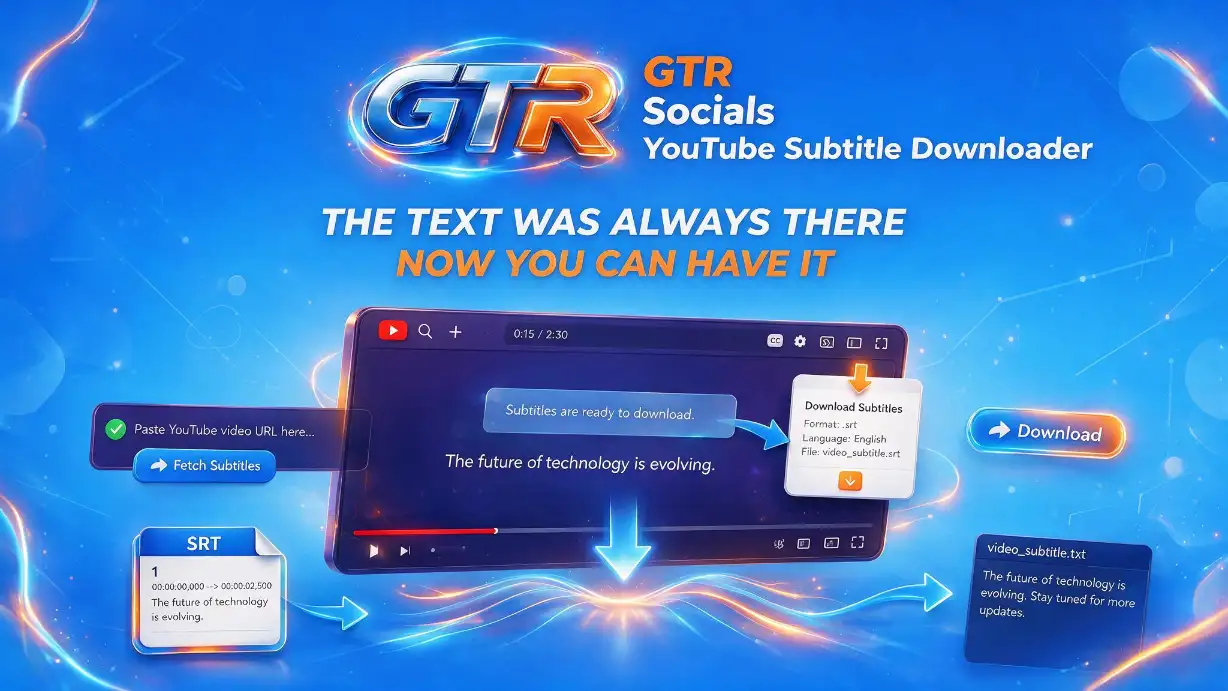
GTR Socials YouTube Subtitle Downloader — the text was always there, now you can have it
YouTube generates automatic captions for hundreds of millions of videos using speech recognition. Creators upload their own subtitle files. Community contributors translate content into dozens of languages. This is an enormous, genuinely useful text resource.
And YouTube gives you no way to export any of it.
Subtitles you can read inside the YouTube player keep you inside the YouTube player. Subtitle files you can download and use anywhere don't. The pattern is identical to every other download restriction on the platform — keeping content inside the app keeps ad impressions alive.
The people who most need subtitle files — language learners, researchers, journalists, accessibility advocates, transcriptionists — are exactly the people most poorly served by read-only in-player captions. Reading subtitles inside a video player while trying to study, analyse, or translate them is genuinely painful. Having the text file is the obvious solution YouTube has chosen not to provide.
Find the video whose subtitles you want on YouTube. Copy the URL from your browser's address bar or tap Share → Copy Link on mobile.
Visit gtrsocials.com/tools/youtube-subtitle-downloader, paste your link, select your preferred language if multiple subtitle tracks are available, and hit Download.
Your subtitle file downloads instantly — clean text, properly formatted, ready to use however you need it.
Other subtitle downloaders exist. Most impose format restrictions, require accounts to access full functionality, serve aggressive ads between every click, or output files that need additional cleanup before they're usable. Here's what GTR does differently:
SRT, VTT, and plain text output depending on your use case. Subtitles for a video player need different formatting than subtitles you want to read as a document.
Paste a URL and download. No email, no account, no personal information required.
Where a video has subtitles in multiple languages, select which track you want before downloading.
No logging, no tracking, no data collection. Your downloads are your own business.
iPhone, Android, PC, Mac. Same clean process in any browser.
Download subtitle files from as many videos as you need. Free and unlimited.
This is the biggest use case by a significant margin. YouTube is one of the best language learning resources ever assembled — native speaker content, authentic conversation, every register from casual to formal. But learning from videos only works efficiently when you have the actual text.
Download subtitles for videos you're studying. Read them before watching to preview vocabulary. Read along while watching to catch what you miss. Study the text afterward to consolidate what you learned. This three-pass approach — preview, watch, review — is dramatically more effective than watching alone, and it only works when you have the subtitle file.
Academic lectures, conference talks, expert interviews, documentary content — YouTube carries an enormous volume of educational material that researchers need to work with as text. Pulling quotes, searching for specific terms, citing accurately — none of this is practical when the only access you have is a video player.
Downloaded subtitle files are searchable, quotable, and referenceable. They turn video content into workable primary source material.
Subtitle files aren't perfect transcripts — auto-captions in particular miss words, get names wrong, and stumble on technical terminology. But as a starting draft that captures 85-90% of the spoken content accurately, they're a significant time saver. Download, clean up the errors, and you have a working transcript in a fraction of the time a full manual transcription would take.
You recorded a video, uploaded it to YouTube, and now want to repurpose the content — a blog post, a newsletter, a LinkedIn article. The subtitle file from your own video is the fastest route to a working text draft. Download it, remove the timestamps, clean up the auto-caption errors, and you're most of the way to a publishable piece of written content.
Subtitles exist specifically to make content accessible to deaf and hard-of-hearing viewers. But in-player captions serve that need imperfectly — you can't adjust timing, can't increase text size beyond the player's limits, can't use your preferred reading tools. Having the subtitle file in a format you can control solves accessibility problems the in-player experience doesn't.