

Sarah spent 45 minutes hunting for this. Conflicting guides, Reddit threads, outdated tutorials. The actual process? Two minutes, once you know where to look. Here's exactly what to do — on desktop and mobile.
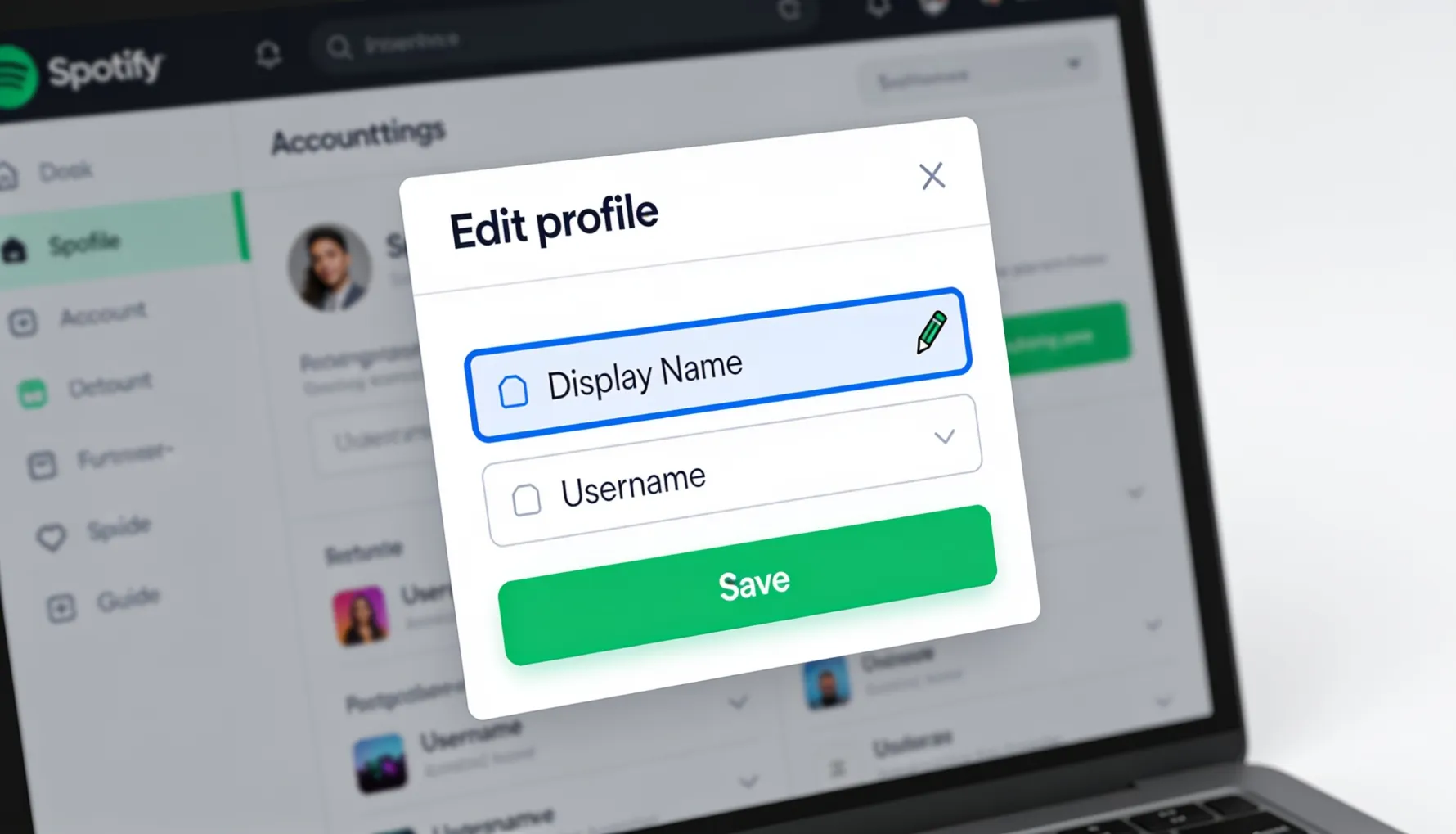
Last week I watched my friend Sarah spend 45 minutes trying to figure out how to change her Spotify username.
She created her account seven years ago and was "SpotifyGirl2018" (she still cringes about it). Now she wanted something more professional for her work in marketing. So she Googled "how to change Spotify username" and found conflicting information — some articles said it was impossible, others had outdated instructions for old versions of the app, and one suggested changing her entire Spotify account (which sounded terrifying).
She found herself reading Spotify support forums, Reddit threads, and confused YouTube videos. Forty-five minutes later she finally figured it out — and it was way simpler than everything she'd read suggested. "Why is this so difficult to find?" she asked me in frustration. "Clearly Spotify is trying to bury this feature."
The truth is Spotify didn't hide it. The feature just isn't where most people expect it to be. And most of the guides online are either outdated or too complicated.
Exactly how to change your Spotify username — step-by-step on desktop and mobile. What actually happens when you do. The difference between display name and username (most people get confused). Common problems and their fixes. Whether you're looking to rebrand your profile, make it more professional, or finally ditch that username you created back in 2015 — you'll know exactly how to do it in under two minutes.
Understanding Display Names and Usernames on Spotify
Know what you're really changing before you change anything — most of the confusion people encounter comes from not understanding these are two completely different things.
Spotify has two different options for naming:
✅ Display Name (What Most People Want)
- What other people see on your profile
- Can be changed at any time, instantly
- Can include spaces and special characters
- Most visible — shows on shared playlists and friends' activity
- Can change as often as you like
- No character restrictions
⚠️ Username (More Complex)
- Your unique Spotify identifier
- Your @handle in your profile link
- Only letters, numbers, and underscores
- Can only be changed once every 30 days
- Previously used for login (less relevant now)
- Changes your Spotify profile URL
Most people who ask "how do I change my Spotify username" actually mean their display name. That's the easiest thing to change and what most people actually want. For most people: just change your display name. That's what's seen everywhere that matters.
How to Change Your Display Name on Spotify (Desktop)
The most common change — takes 2 minutes.
Launch Spotify
Open the Spotify desktop app or go to spotify.com. Log in if you are not already logged in.
Go to Account Settings
Click the name/icon of your profile at the top-right corner. Choose "Account" from the drop-down menu. (Alternative: go directly to account.spotify.com.)
Locate Profile Settings
Scroll down to the Profile Public section. Your current display name will be shown here.
Change Display Name
Click on your current name — the text field becomes editable. Delete the old name and type your new name.
Save and Confirm
Click outside the field or press Enter to save. Changes are saved immediately — no confirmation screen needed. Profile updates straight away.
That's all. Finished. Your new name shows in your profile at spotify.com/user/[yourprofile], on shared playlists, in friends' activity feeds, and on all playlists you've publicly created. Updates happen in seconds, on all devices, wherever your profile appears.
How to Change Your Spotify Display Name (Mobile)
On iPhone or Android — the steps are slightly different depending on your device.
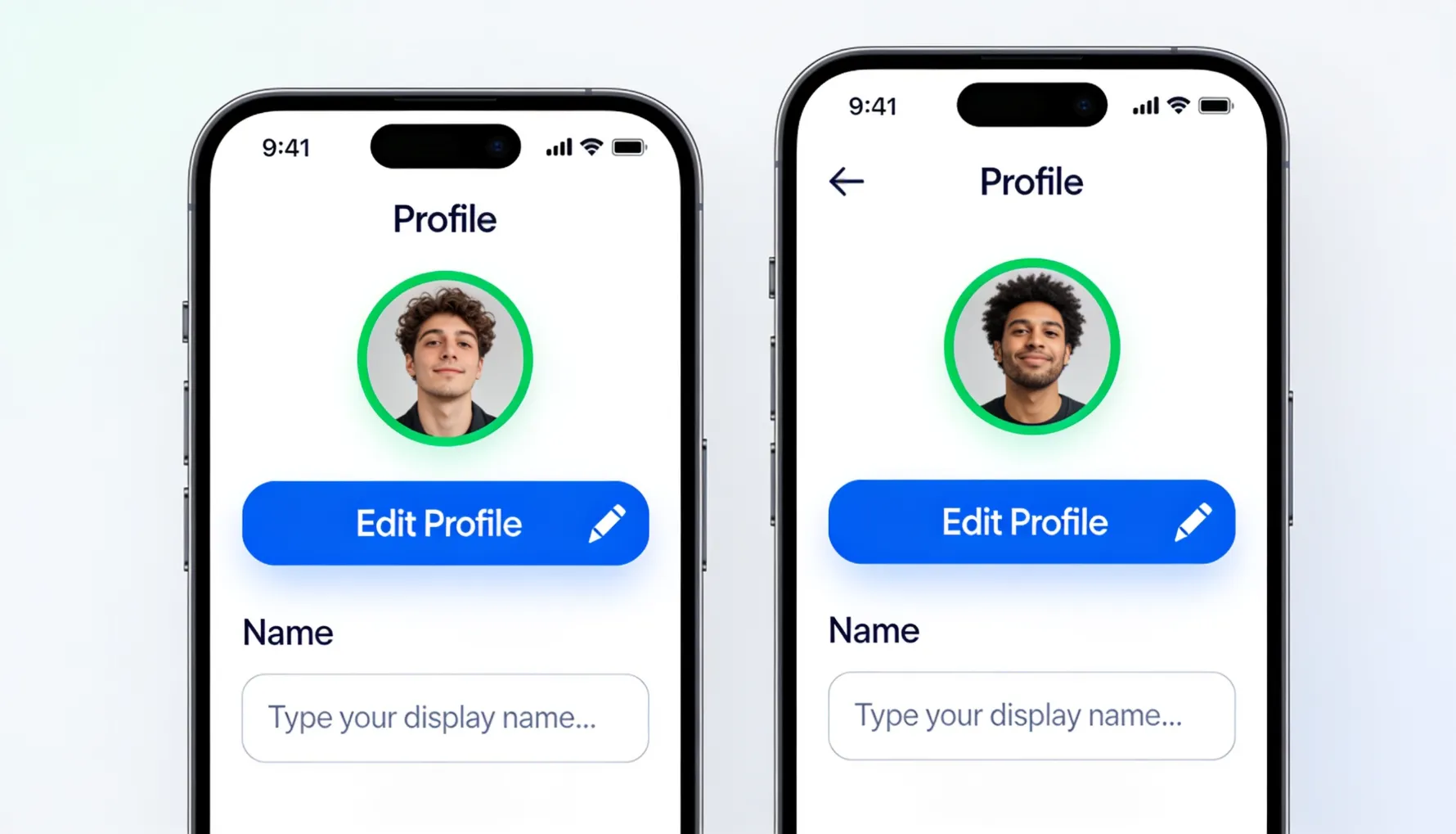
iPhone (iOS)
Open the Spotify App
Start Spotify and make sure you're signed in.
Head to Your Profile
Tap "Home" (bottom left). Tap your profile icon/name (top left corner). This brings up your profile page.
Edit Your Profile
Click the "Edit Profile" button, or tap the pencil icon if it's visible on your profile page.
Modify Display Name
Locate the "Name" or "Profile Name" field. Tap the text field, delete old name, type your new name.
Store the Changes
Tap "Save" or "Done." Changes sync immediately to all your devices.
Android
Launch the Spotify App
Open Spotify and make sure you are logged in.
Navigate to Profile
Tap your profile icon (bottom right or top area). Choose your profile/username from the menu that appears.
Modify Your Profile
Look for the pencil icon or "Edit Profile" button. Tap it to enter edit mode.
Name Change
Tap the name field. Clear the existing name and enter your new display name.
Save the Changes
Click "Save" or the checkmark. Syncs to all your devices automatically.
Mobile interfaces may differ slightly depending on your version of the Spotify app. If you don't see these exact options, look for "Edit Profile" or a pencil icon on your profile page. The option will be there — it just may be in a slightly different position.
How to Change Spotify Username (Your @ Handle)
Only follow these steps if you specifically want to change your @ handle — your unique identifier in your profile URL. Most people don't need this.
You may only change your username once every 30 days. Once changed, you can't change it back immediately — you must wait the full 30 days. Character limits apply (only letters, numbers, and underscores). Your old username becomes available to others after 30 days — someone else might claim it.
Go to Account Settings
Visit account.spotify.com. Log in if needed. Scroll to the Username section.
Confirm Eligibility
If you're able to change it, you'll see an option. If you recently changed it, you'll see a countdown timer showing when you're next eligible.
Type New Username
Click the Username field and enter your new username. Spotify verifies availability in real time — it shows immediately if the username is already taken.
Confirm the Change
Click "Save" or "Change." A confirmation message appears. Change is immediate.
Share the New Link
Your profile URL has changed. The old URL redirects for some time, but update any links you've shared externally if needed.
Username Character Rules
Your username must be 3–30 characters long, contain only letters (a-z), numbers (0-9), and underscores (_). No spaces or special characters. Cannot begin with a number.
✅ Valid Examples
- sarah_music
- spotifyuser123
- the_playlist_queen
❌ Invalid Examples
- sarah music (spaces not allowed)
- sarah@music (no special characters)
- 123sarah (can't start with number)
Common Problems and Their Fixes
Running into an issue? Here are the five most common problems and exactly how to solve each one.
🔍 Problem 1: "I Don't See an Editing Option"
- Log out completely, then log back in
- Refresh the page or restart the app
- Try a different browser or the app version
- If you changed recently, wait the full 30 days
- Check for any parental controls that restrict account access
🚫 Problem 2: "Username Already Exists"
- Try a different username variation
- Add numbers or underscores (username_v2, username_2, etc.)
- Check Spotify search to see who has it — you cannot claim other people's usernames, even if they're inactive
🔄 Problem 3: "Changes Not Showing on All Devices"
- Log out from all devices simultaneously
- Close Spotify entirely on all devices
- Wait 5–10 minutes
- Log back in — changes should now be synced
- If still not working, clear the app cache
🚷 Problem 4: "Display Name Has Restricted Words"
- Avoid potentially offensive terms
- Use different wording that conveys the same meaning
- Add numbers or underscores to work around incorrect filters
- If you think the filter is incorrect, contact Spotify support
⏱️ Problem 5: "I Changed My Username Too Recently"
- Wait the full 30 days — there are no exceptions to this
- Change your display name instead (this can be done at any time)
- Contact Spotify support if there's a genuine error (rarely helps with the timer)
What Happens to Your Old Username/Old Name
One of the most common worries people have before changing — here's exactly what happens and what doesn't change.
🔄 Old Display Name
- Goes away right away
- Not recoverable after changing
- No one can track you by your old name
- Your new name appears retroactively on friends' playlists
🔗 Old Username
- Becomes available to others after 30 days
- Someone else might claim it
- Old profile URL redirects to new one temporarily
- Old URL still works and redirects
Your playlist history is unchanged. Your followers remain the same. Your listening history stays the same. Saved songs are unchanged. Everything stays exactly the same — only the visible name changes.
What friends observe: They see your new name right away on profiles and shared playlists. Your new name shows in their activity feeds. Old messages and mentions won't be updated retroactively, but all new appearances will show the new name.
How to Choose a New Spotify Username/Display Name
A few principles worth considering before you type anything.
Make It Memorable
Aim for easy spelling, not too long (simpler to share verbally), and something related to you or your taste in music. Names that are clear and specific are much easier for friends to find and remember than vague or generic ones.
Keep It Professional (If Shared)
If friends or colleagues will see it, steer clear of references or slang that are outdated, and think about your future self — you might not like the same thing in five years. Sarah's "SpotifyGirl2018" is the perfect example of this lesson learned the hard way.
Think About Your Brand
If you're a creator or artist, match your username to your presence on other platforms. A consistent handle makes it easier for new audiences to find you and connects your various presences together professionally.
What to Avoid
- Birthdates — privacy reasons
- Full personal information
- Copying information from other platforms (security)
- Brand names — possible trademark issues
Get Creative
Combine interests (musiclover_tech), use wordplay (playlist_princess), incorporate hobbies (hiking_and_hip_hop). It's entirely up to you to make it yours and reflect what you want people to know about you through your music.
Quick Reference: Desktop vs. Mobile
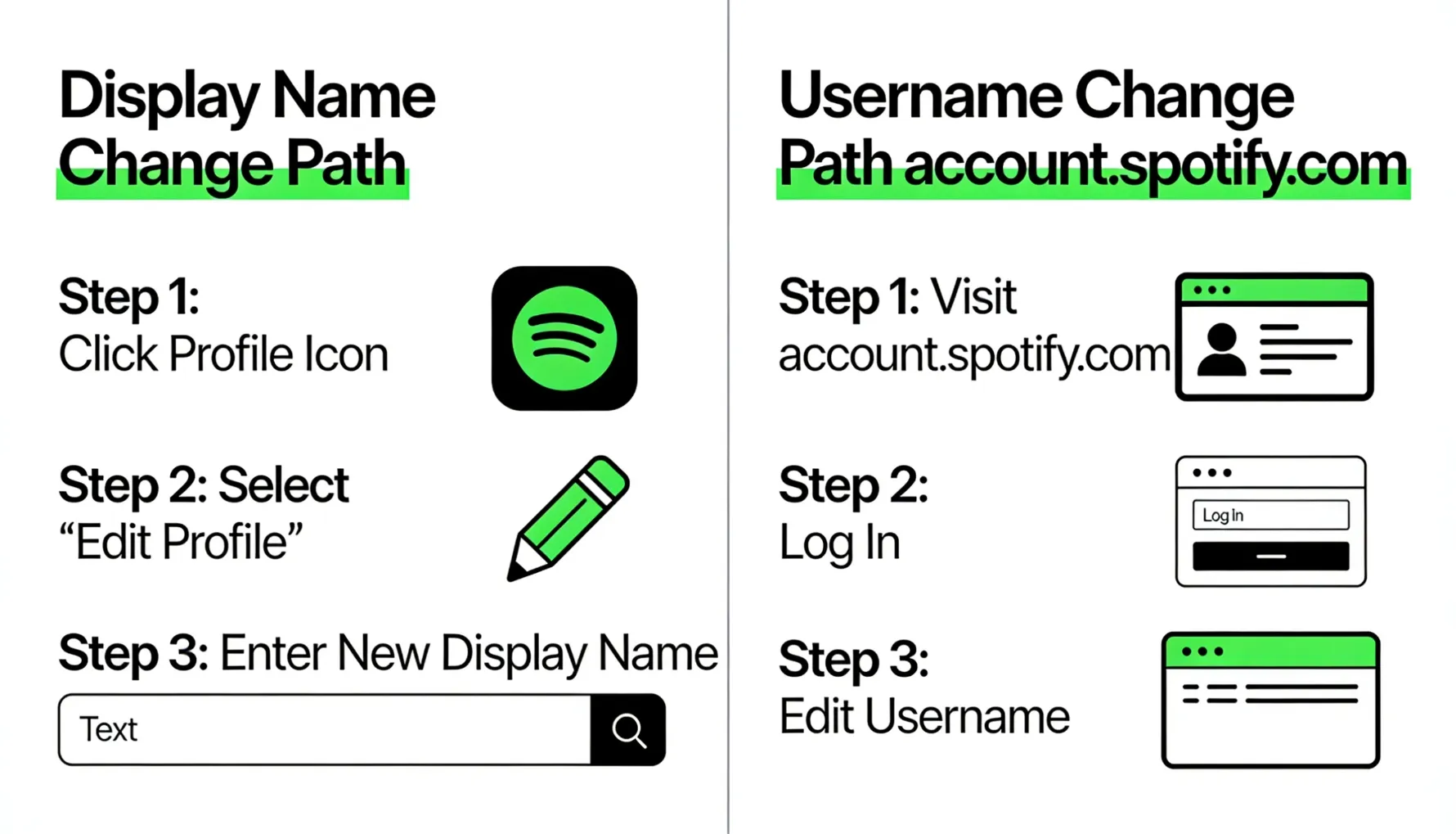
Change Display Name
Change Username (@ Handle)
Want something different that friends see? Change your display name. Want to change your @ handle? Change your username. No clue which one you need? Simply change your display name — it's easy, unlimited, and it's what everyone actually sees.
Common Questions
Final Thoughts: Taking the Leap
My friend Sarah spent 45 minutes working this out. "It's so easy once you know where to look," she told me after she finally changed her name. "I wasted time because every guide made it seem difficult. It just means going to your profile and putting in a new name."
The real story on changing your Spotify username: it's one of the easiest things to do on Spotify, so easy it's almost invisible. Spotify doesn't force it, doesn't make it obvious, doesn't walk you through it automatically. But once you know where to look, it literally takes 2 minutes.
Display name? Go to your profile → Edit → Type new name → Done (30 seconds). Username? Go to account.spotify.com → Username → Type new name → Done (1–2 minutes). Both? Display name first (easier), then username if needed.
The important things to keep in mind: display name = unlimited changes, instant. Username = once every 30 days, must wait between changes. Changes are permanent after 30 days (old name is gone). Your data, playlists, and followers remain completely the same. Don't worry about it too much. Don't watch complex YouTube tutorials. Don't overthink it. Go to your profile, find your name, and edit it. Now go get yourself a Spotify username you actually like.
🎵 Want to Build a More Impressive Spotify Presence?
GTR Socials helps artists and creators build real Spotify engagement — more plays, more followers, and the social proof that helps your music reach new listeners.
Comments (0)