

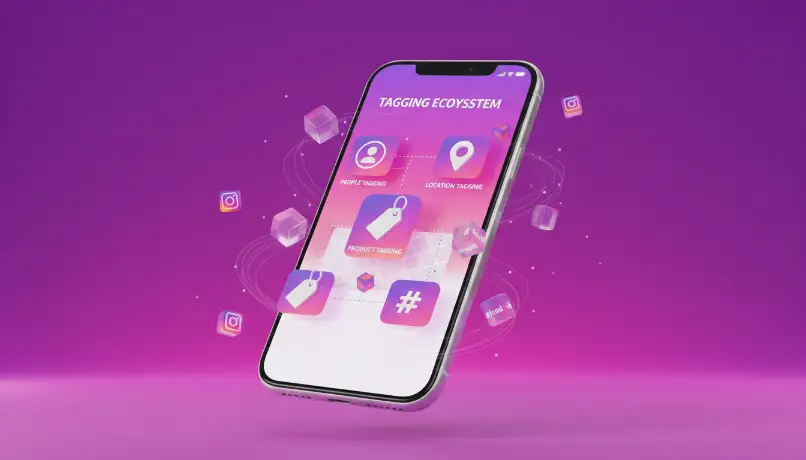
Instagram's tagging ecosystem spans four content types — each with its own rules and reach potential
The Coffee Shop Photo That Started This Guide
Last month, my friend Rachel — who runs a small lifestyle brand with over 3,000 Instagram followers — posted the most beautiful photo from our catch-up at a coffee shop.
The lighting was golden. The composition was perfect. She looked absolutely great.
I was there too. Right next to her. Very much in the photo.
She didn't tag me.
When I texted her about it, she replied: "Wait, I thought I did? How do you even tag people again? Is it the @ thing or something else?"
This is someone who uses Instagram every single day for her business. She wasn't clueless — she was confused, because Instagram has four completely different ways to tag someone, and they all work differently depending on where you use them.
Here's what surprised Rachel even more when I walked her through it: tagging isn't just a social courtesy. Instagram's algorithm treats tags as visibility signals — meaning a well-placed tag can push your content into new audiences, while a missed tag is a missed growth opportunity.
By the end of this guide, you'll know exactly how to tag in every format Instagram offers — and more importantly, you'll understand why each method works the way it does so you can use them strategically.
Let's clear up the most common confusion first.
Tagging vs. Mentioning: The Difference That Actually Matters
Most people use "tagging" and "mentioning" interchangeably. They're not the same thing — and confusing them is the #1 reason people tag someone in a way they'll never see.
| Feature | 📍 Photo/Video Tag | @ Mention (Text) |
|---|---|---|
| Where it lives | Directly on the image or video | In captions, comments, or Story text |
| Where it appears | Tagged tab on their profile | Only in the text where you typed it |
| Profile integration | ✅ Yes — permanent gallery | ❌ No profile integration |
| Notification type | "You were tagged in a post" | "@username mentioned you" |
| Priority | High — separate notification section | Standard activity feed |
| Best used for | People who are actually in the content | References, credits, conversation |
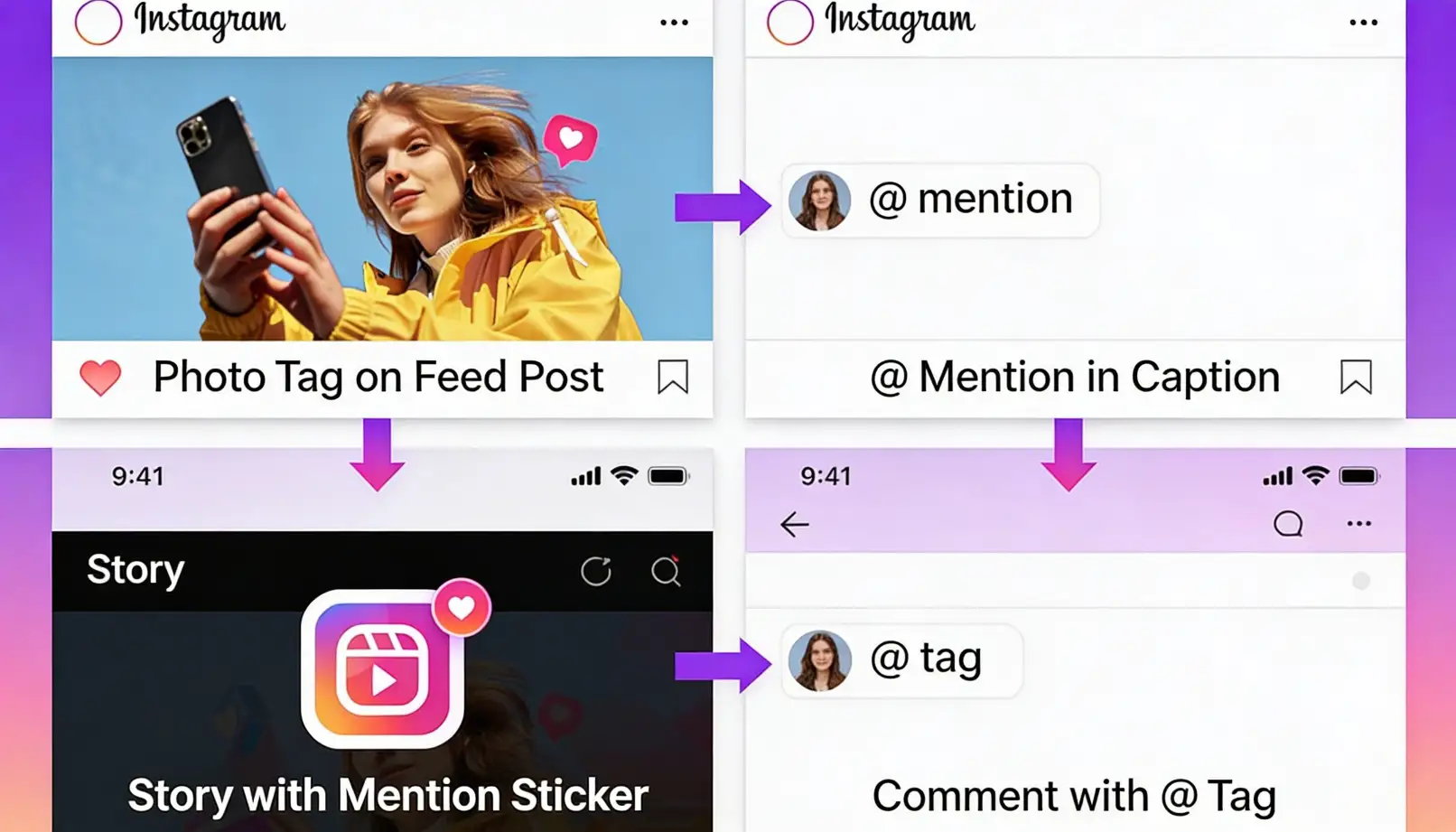
Each of the four Instagram tagging methods serves a distinct purpose — knowing which to use is half the battle
💡The Simple Rule
Think of it this way: a tag is about who is in the content. A mention is about who you're talking to or about.
If you and a brand collaborated on a photo shoot, you'd tag the brand (they're part of the content). If you caption a solo photo saying you're wearing their clothes, you'd mention them with @ (you're referencing them in text).
Caption, comment, or Story where you reference someone → use @mention
Want maximum reach + profile integration → use both together
Now that's settled, let's get into the exact steps for each placement type.
How to Tag Someone in Instagram Feed Posts
Feed posts (single images, carousels, and standard videos) are where the classic "Tag People" feature lives. This is the tag that sticks to the image itself and shows up on the tagged person's profile.
✏️Method 1: Tagging While Creating a New Post
Start your post
Tap the + icon, choose your photo or video, apply filters and edits.
Open the tagging screen
After editing, tap Next. On the New Post screen, tap "Tag People."
Place your tags
Tap anywhere on the photo — a search bar appears. Start typing the person's name or username, then select the correct account from the dropdown.
- The tag appears as a floating name label on the image
- Tap and drag any tag to reposition it
- You can tag up to 20 people per post
Finish your post
Tap Done, write your caption (add @mentions here too for double visibility), then hit Share.
🔄Method 2: Adding Tags After Publishing
Forgot to tag someone? No problem — you can edit tags on feed posts at any time:
- Go to your post and tap thethree dots (···)in the top right
- Select"Edit"from the menu
- Tap"Tag People"at the bottom of the screen
- Add, remove, or reposition tags, then tap"Done"
🎠Carousel Posts: Tagging Multiple Slides
Here's what trips people up: in a carousel post, each photo can have its own separate set of tags. When you tap "Tag People," you can swipe between slides to tag different people in different images. This is perfect for group content where different people appear on different slides.
How to Tag Someone in Instagram Stories
Stories tagging works differently from feed posts — and it's actually where most people make mistakes. The good news: Stories offer more creative flexibility with how tags look and where they sit on screen.
⭐Method 1: The @Mention Sticker (Best Method)
This is the recommended approach in 2026 — it's the most visible, most customizable, and most reliable way to tag in Stories.
Create your Story
Swipe right from your feed, capture or upload your photo or video.
Open the Sticker Tray
Tap the sticker icon (the square smiley face) at the top of the screen. Select the "@Mention" sticker.
Search and select
Type the username. Tap the correct account from the suggestions. The sticker appears on your Story.
- Tap the sticker to cycle through colour options
- Pinch to resize it
- Drag it anywhere on screen
Add more mentions if needed
You can add up to 20 mention stickers per Story. Each one is independently customisable. Tap "Your Story" to publish.
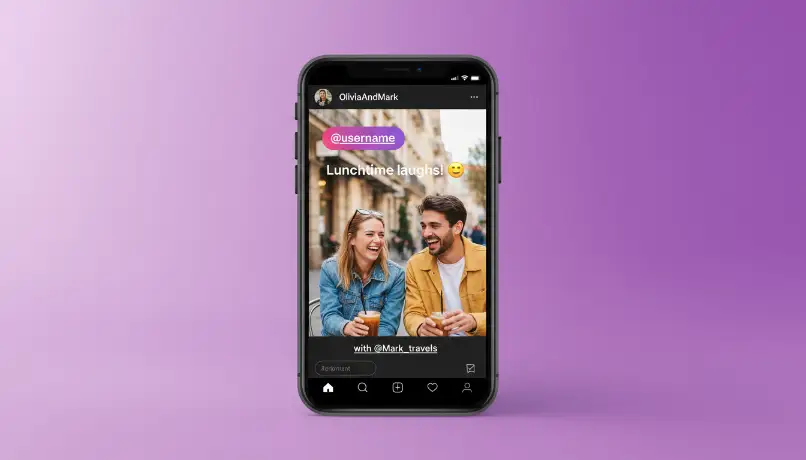
The @Mention sticker can be resized, recoloured, and repositioned anywhere on your Story frame
📝Method 2: @Mention in Text Overlay
Prefer a more subtle tag? Tap the "Aa" text button, type @ followed immediately by the username (no space), and select the account from the dropdown. This creates a tappable text link rather than a sticker — great when you want the mention to feel like part of your caption.
Public vs. Private Account Tags
If your account is public, anyone can see Story tags. If your account is private, only your approved followers can see the Story — but the tagged person still receives a notification regardless of your privacy settings.
How to Tag Someone in Instagram Reels
Reels tagging combines elements of both feed posts and Stories — and it matters more than most people realise. Tagged Reels have higher potential for reach because they connect to multiple audiences simultaneously.
🎬Method 1: Tag People in the Reel Itself
Create your Reel
Tap +, select "Reel." Record or upload your clip. Add audio, effects, text overlays.
Proceed to the share screen
Tap "Next" after editing. You'll see a preview of your Reel alongside sharing options.
Tag People
Select "Tag People" or "Add tag" from the settings. Type @ and search for the username. Confirm the tag.
- Tags appear in the Reel's details section (not directly overlaid on the video)
- Tagged users get a notification when the Reel goes live
Write your caption with @mentions
Add caption @mentions for collaborators, music artists, brands, or anyone relevant. These are clickable links in the caption text.
Share
Tap "Share". Both the tag and caption mentions go live together for maximum visibility.
📌Method 2: @Mention in Reel Caption
On the share screen, tap "Write a caption..." and type @ followed by the username. This creates a tappable link in the Reel's caption — ideal for crediting music artists, referencing brands, or tagging collaborators who don't appear in the video itself.
Tag vs. Collab Invite — Not the Same
On the same share screen, you'll see both "Tag People" and "Invite Collaborator." These are fundamentally different. A tag sends a notification. A Collab invite makes the Reel appear on both profiles with shared metrics. We cover Collabs in depth in Section 7.
How to Tag Someone in Instagram Comments
Comment tagging is all about @mentions — there's no photo tag feature in comments. But it's one of the most powerful tools for getting someone's attention quickly, whether it's a friend, a creator, or a brand.
💬Tagging in Your Own Comment
Open any post
Navigate to the post on your own profile or anyone else's public profile.
Tap the comment icon
Tap the speech bubble icon below the post. Click into the comment field at the bottom.
Type @ + username
Type @ immediately followed by the username (no space). Instagram auto-suggests matching accounts — tap the right one. Continue typing your comment.
Post
Tap "Post." The tagged person receives a notification in their activity feed. You can tag multiple people in a single comment — just repeat the @ process for each one.
↩️Tagging in Replies
When you tap "Reply" under someone's comment, Instagram automatically pre-fills @theirname at the start of your reply. You can keep that tag, delete it, or add additional @mentions. Replies appear threaded under the original comment, keeping conversations organised.
Instagram Collabs: The Power Move Beyond Regular Tags
This is the section that most Instagram tagging guides completely skip — and it might be the most valuable feature for creators and brands in 2026.
Instagram Collabs transforms a standard tag into a true co-authorship. Instead of just notifying someone that you tagged them, a Collab invite turns a single post or Reel into shared content that appears on both profiles simultaneously.
🤝How Collabs Work vs. Regular Tags
| Feature | Regular Tag | Instagram Collab |
|---|---|---|
| Appears on their profile | Tagged tab only | ✅ Main grid / Reels tab |
| Shared engagement | ❌ Separate metrics | ✅ Same likes, comments, views |
| Audience reach | Limited crossover | ✅ Both full audiences |
| Credit shown | Tag visible if tapped | ✅ Co-author shown prominently |
| Requires acceptance | ❌ No | ✅ Yes — invite must be accepted |
| How many people | Up to 20 | 1 collaborator per post |
📋How to Invite a Collaborator
Create your post or Reel as normal
Edit, add audio, effects — everything you'd usually do.
On the share screen, tap "Invite Collaborator"
This is a separate button from "Tag People." Search for and select the account you want to Collab with.
Share the post
The collaborator receives a notification. They can accept or decline. The post only appears on their profile after they accept.
Enjoy combined reach
Once accepted, the post appears on both grids. All likes, comments, and saves are pooled into one unified count visible to both audiences.
Tagging Etiquette & Smart Strategy for Growth
Knowing how to tag is step one. Knowing when and why to tag is what separates strategic creators from people who just spray-and-pray with @ symbols.
✅ DO Tag When...
- The person is actually in the photo or video
- You're giving credit to a creator, photographer, or designer
- You're collaborating on content together
- It's a genuine shoutout or feature
- You're showcasing their product with their permission
❌ DON'T Tag When...
- The person has no connection to the content
- You're tagging big accounts to chase attention
- You're using tags as a spam tactic for views
- They've removed your tags before (respect it)
- The content could harm their reputation
The contrast between thoughtful tagging and spam tagging is obvious in results — and in how Instagram's algorithm responds
🔐The Permission Question
Most casual tagging doesn't require asking permission — group photos at events, crediting work someone publicly shared, or tagging a collaborator you've already agreed to post with. But there are situations where you should always ask first: professional contexts where the tag could affect their reputation, content where they don't look their best, or anything that might associate them with a brand or cause they haven't signed off on.
🚫The Tag Spam Problem
Instagram's algorithm is smarter than people think. If you're mass-tagging random accounts hoping for attention, Instagram may flag your posts as spam. The accounts you tag may block or mute you. And even if neither happens, you look desperate rather than strategic.
⏰Timing Your Tags for Maximum Impact
Tags on Stories are especially time-sensitive — they disappear after 24 hours, so tag early after posting. For feed posts and Reels, tagging during peak activity hours (evenings and weekends in your audience's timezone) means notifications are seen when people are actively scrolling. For brand collaborations, coordinate posting times with your partners so both audiences are active simultaneously.
🙈The Art of Removing Tags
If someone removes your tag, don't re-tag them. It's a clear signal they'd prefer not to be linked to the content. On the flip side, if you're tagged somewhere you'd rather not be: go to the post, tap your username tag, and select "Remove Me From Post." This removes you from the tag but leaves the post itself intact. If the content itself is problematic, you can also report it.
Want Tags to Actually Drive Growth?
Strategic tagging helps — but if your account is new, the algorithm needs initial engagement signals before tags can amplify your reach. That's exactly the cold start problem GTR Socials helps you solve.
Explore Instagram Followers Boost Instagram LikesTroubleshooting Common Tagging Problems
Even when you do everything right, Instagram can be finicky. Here are the most common tagging issues and exactly how to fix them.
🔍"I Can't Find the Person I Want to Tag"
Why the search isn't finding them:
- Their account is private and you don't follow them
- They've blocked your account
- You're spelling the username wrong (check underscores, dots, numbers)
- Their account was deactivated or deleted
- A temporary Instagram server glitch
Fix: First confirm the username by searching from the main search bar. If the account appears there but not in the tag search, try typing the @mention directly in the caption instead as a fallback.
💨"My Tag Disappears or Won't Save"
Why tags aren't sticking:
- Weak or unstable internet connection
- Instagram app is outdated
- You've hit the 20-tag limit
- A temporary bug (common after major app updates)
Fix: Check your connection, update the app, close and reopen Instagram. If you've hit the tag limit, you'll need to remove one before adding another.
🔕"I Tagged Someone But They Never Saw It"
Why notifications aren't being received:
- They've turned off tag notifications in their settings
- They have notification filters active (only seeing tags from accounts they follow)
- Your account has been flagged for spam activity
Fix: Verify the tag is on your post. If important, send a direct message letting them know you tagged them. For ongoing collaborations, using the Collab feature sends a more prominent notification than a standard tag.
👤"I Tagged Someone But It's Not on Their Profile"
Why tagged posts don't appear on their profile:
- They have manual tag approval enabled — they haven't approved it yet
- They removed the tag
- They've hidden it from their profile (the tag still exists, just not visible to others)
- Their account is private and you're not a follower
Fix: You can't force this — and you shouldn't. Their profile, their choices.
🐛Carousel & Reel-Specific Bugs
Some users report tags not showing on all carousel slides, or editing tags on published Reels failing silently. If this happens: preview before publishing to catch it early, clear your app cache, or log out and back in. If the issue persists, Instagram's "Report a Problem" feature (in Settings) is the official channel — and honestly, sometimes waiting for the next app update just fixes it.
Frequently Asked Questions
Ready to Build Real Instagram Momentum?
Smart tagging is one piece of the puzzle. GTR Socials helps creators and businesses get the initial engagement signals that make every piece of content — tagged or not — perform at its full potential. Over 35,000 clients. 12+ years. Real results.
Buy Instagram Followers Buy Instagram Likes Buy Instagram CommentsKeep Growing on Instagram
Now that you've mastered tagging, here are more resources to level up your Instagram strategy:
Comments (0)