

Ava spent 30 minutes confused between three different "names" on YouTube — and nearly changed her entire Google account by accident. The actual process takes two minutes. Here's what each name actually is and how to change exactly what you need.
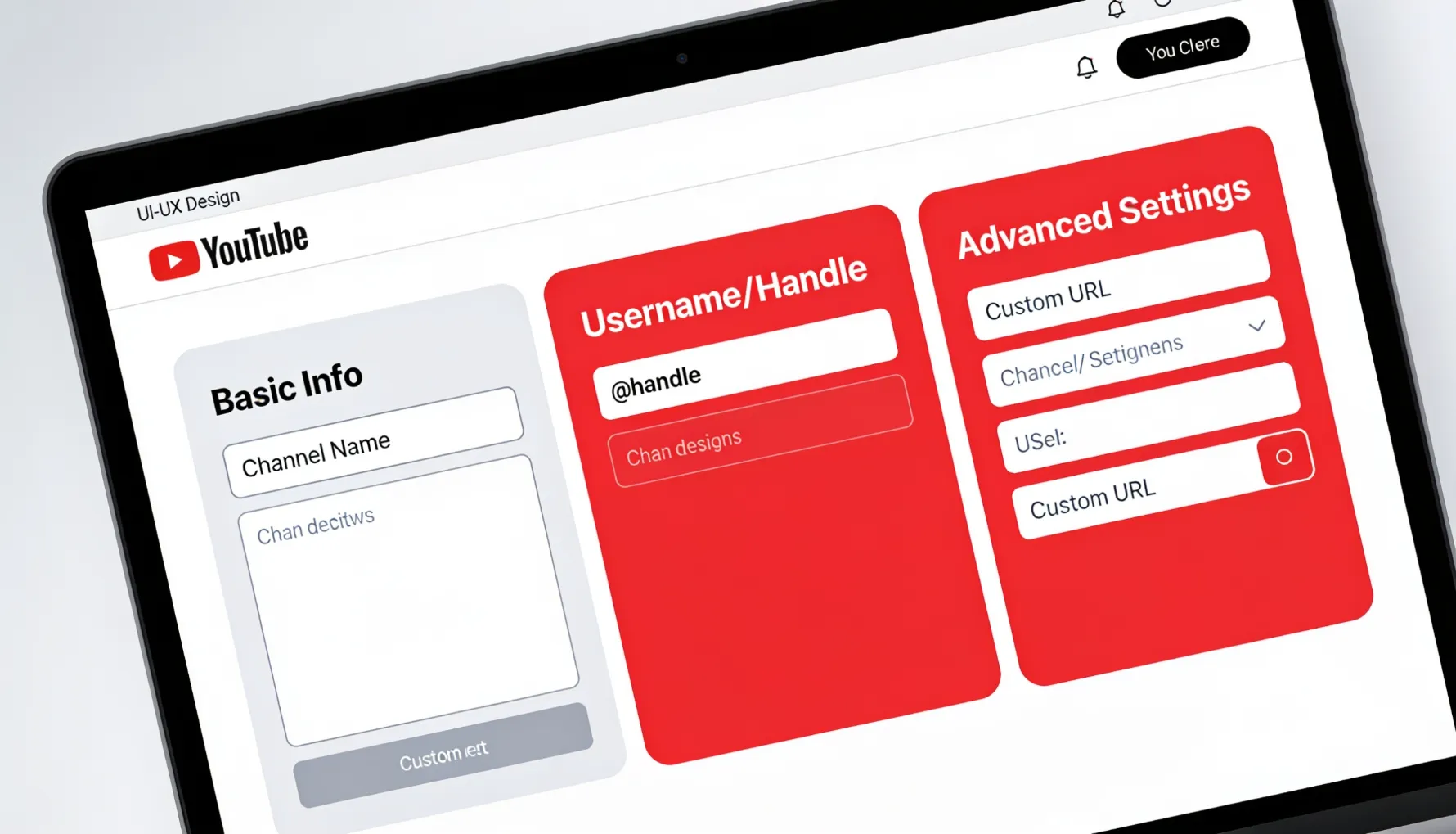
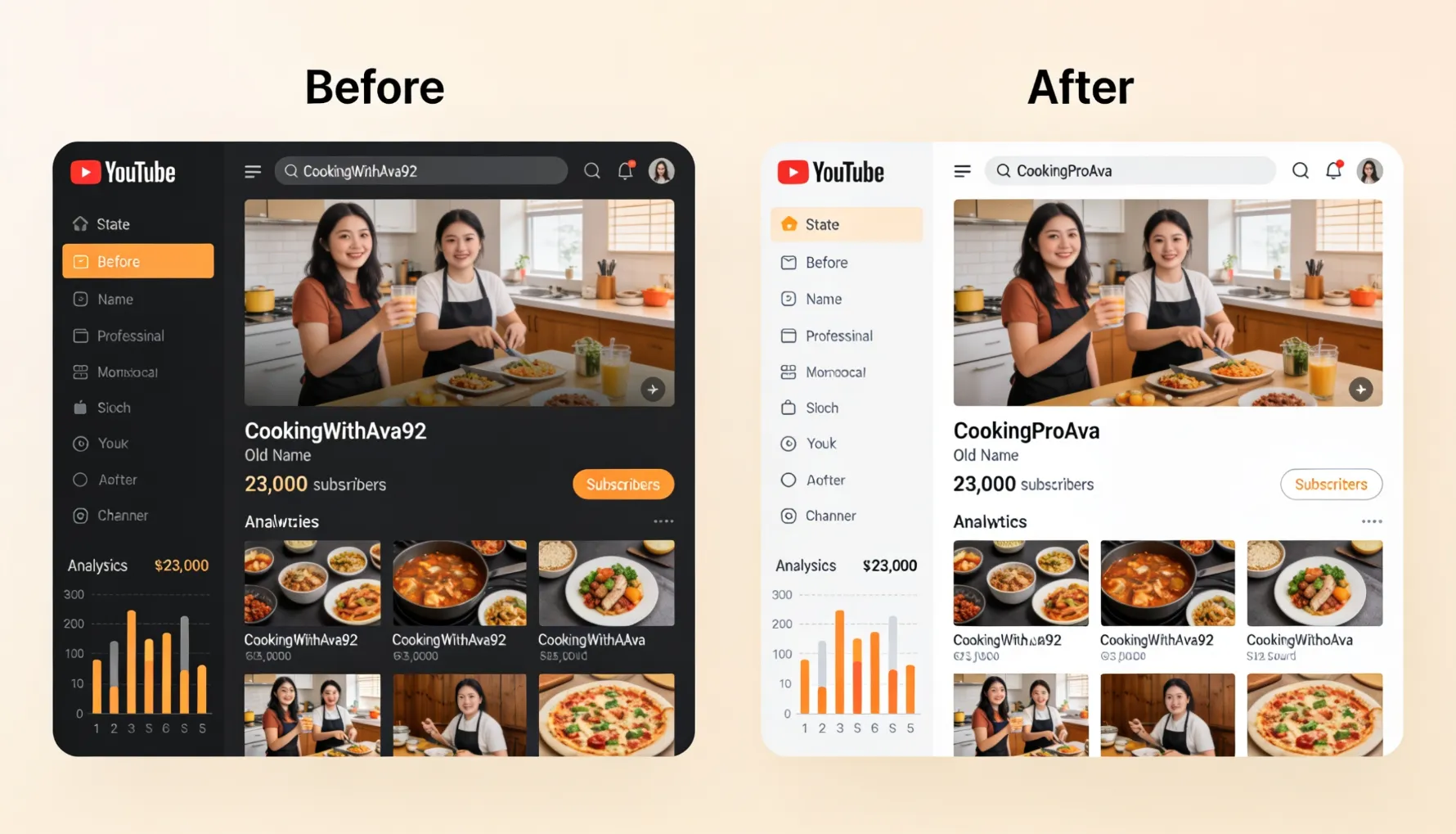
Three weeks ago, I helped my cousin rebrand her YouTube channel from "CookingWithAva92" (created in 2014) to something more professional for her growing cooking business.
She'd been posting recipes for years, built up 23,000 subscribers, and was finally ready to take YouTube seriously as a revenue stream. But that username? It screamed "random teenager's channel from 2014." "I just want to change my channel name," she told me. "How hard can it be?" Turns out, harder than she thought.
YouTube changed how channel naming works several years ago, and most online guides haven't caught up. She looked for a "rename" button that doesn't exist in the places tutorials suggested. She found conflicting information about "channel name" vs "username" vs "custom URL." She nearly changed her entire Google account name by accident — which would have affected Gmail, Google Drive, everything.
After 30 minutes of confusion, she finally figured out the actual process — and it was simpler than all the tutorials made it seem.
Exactly how to change your YouTube channel name, the difference between channel name and username (which confuses everyone), custom URLs, what happens when you change it, and how to troubleshoot common issues. Whether you're rebranding, correcting a mistake, or finally ditching that username from years ago — you'll know exactly how to do it.
Understanding YouTube Naming (The Confusing Part)
Before changing anything, understand what you're actually changing. This is where most people get confused — YouTube has multiple name settings, not one.
✅ Channel Name (Most Common)
- Displays on your channel page
- Shows on every video you upload
- Visible to everyone
- Can change anytime, instantly
- Can include spaces and special characters
- Most visible to viewers
⚠️ Username / Handle
- Your @handle used for mentions
- Used in your profile URL
- Can change, but limited frequency
- No spaces (letters, numbers, underscores only)
- Shows when people tag you
- Less visible but still important
🔴 Custom URL (Permanent)
- youtube.com/c/YOURNAME format
- Requires 100+ subscribers historically
- Cannot be changed once claimed
- Most important for branding
- Professional-looking channel link
- Not everyone can get one
Most people think they're changing their "username" when they actually want to change their "channel name." These are different things. For most people: just change your channel name. That's what shows everywhere that matters. Channel name = most visible. That's what most people actually want to change.
What Each Shows to Viewers
Channel Name appears at the top of your channel page in large text, under every video you upload, in search results — it's the most prominent identifier. Username/Handle shows when someone tags you in a comment (@yourhandle), in your profile URL (youtube.com/@handle), and when people search for you directly. Less visible but still important for discoverability. Custom URL is your channel link (youtube.com/c/yourname) for branding materials, business cards, and professional use — and critically, it cannot be changed once you set it.
How to Change Your YouTube Channel Name (Desktop)
The most common change — takes 2–3 minutes. This is almost certainly what you want to do.
Go to YouTube
Visit youtube.com and log in if not already logged in.
Access Your Channel
Click your profile icon at the top-right corner. Select "Create a channel" or go to your existing channel, or visit your channel directly at youtube.com/@yourhandle.
Go to Channel Settings
Click profile icon again. Select "Settings" from the dropdown. Or click "Customize channel" on your channel page.
Find "Channel Name"
On the Settings page, look for "Basic Info" section. You'll see a "Channel Name" field. This is what you're changing.
Edit the Name
Click on the channel name field. Clear the old name and type your new name.
Confirm and Save
Click "Save" or "Update." Changes save immediately. Name updates across YouTube on all devices within seconds.
Displays on your channel page immediately. Shows on all your uploaded videos. Appears in search results within hours. Updates on shared playlists. Visible to new and old viewers. Timeline: changes within seconds to minutes. Search results update within hours. You can change back anytime — no limits on how often you change your channel name.
How to Change Your YouTube Username/Handle (Desktop)
Follow these steps only if you specifically need to change your @handle — the identifier used in tags and your profile URL.
Go to YouTube Settings
Click profile icon at top-right. Select "Settings." Go to the "Account" section.
Find Username
Look for the "Username" or "Handle" section. You'll see your current @handle — something like "@YourCurrentHandle."
Click to Edit
Click the pencil icon or "Edit." The text field becomes editable and your current username shows.
Enter New Username
Clear the old username and type your new one. YouTube validates availability in real-time — you'll see immediately if it's taken.
Save
Click "Save" or "Update." A confirmation appears and the change takes effect immediately.
Username Character Rules
Your YouTube handle must be 3–30 characters, contain only letters (a-z), numbers (0-9), and underscores (_). No spaces, no special characters, and it cannot start with a number. Must be unique — not taken by another user.
✅ Valid Handle Examples
- @cooking_with_ava
- @avarecipes123
- @the_cooking_channel
❌ Invalid Handle Examples
- @cooking with ava (spaces)
- @ava-cooking (hyphens)
- @123ava (starts with number)
- @ava.cooking (periods)
How to Get a Custom YouTube URL (Advanced)
If you want youtube.com/c/YourName or youtube.com/@YourHandle as a shareable branded link.
Custom URLs cannot be changed once claimed. You are permanently locked into whatever URL you choose. If you regret it, you cannot change it. Take time to decide before claiming — this is the only irreversible step in the entire naming process.
Requirements for Custom URL
To claim a custom URL, historically you needed 100+ subscribers, 500+ watch hours in the past 12 months, an account in good standing, and agreement to YouTube Partner Program rules. Note: YouTube changed these requirements recently. Current requirements may vary — check YouTube Creator Studio for your specific eligibility.
Check Eligibility
Go to YouTube Studio → Settings → Channel → Advanced Settings. Look for the "Custom URL" section and check if you're eligible.
Choose Your URL
If eligible, search for available URLs. YouTube suggests options based on your channel name. You can custom-type if your preferred URL is available.
Claim It — Permanently
Click "Claim" on your chosen URL. A confirmation appears. The URL is now yours forever. Can't change it once claimed.
Changing Your Channel Name on Mobile
On iPhone or Android — similar steps but slightly different navigation.
iOS (iPhone/iPad)
Open YouTube App
Launch YouTube and make sure you're logged in to the correct account.
Go to Profile
Tap the profile icon at the bottom-right. Tap your channel name or "View on Profile."
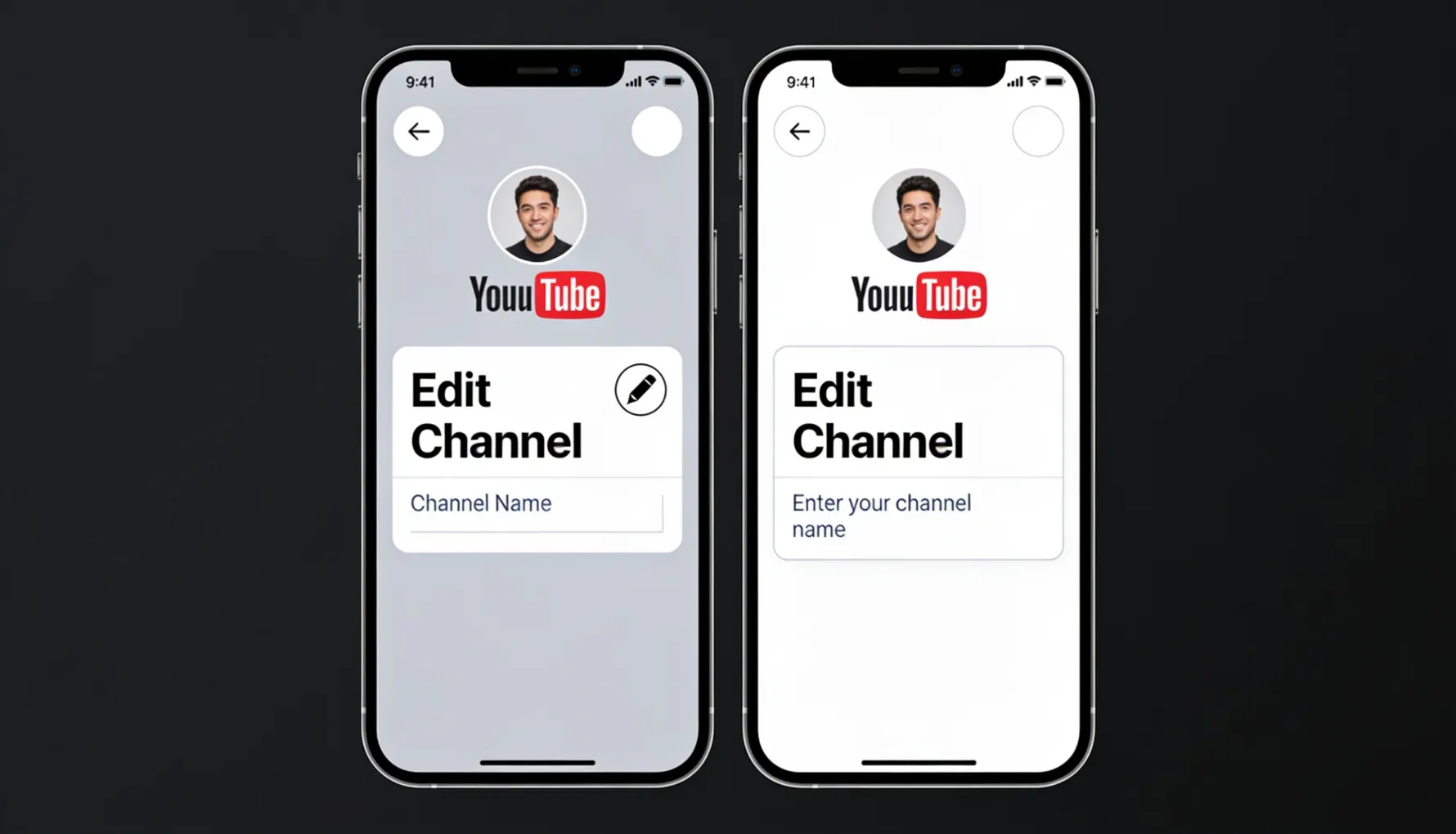
Edit Channel
Look for the pencil icon or "Edit" button. Tap to enter edit mode.
Change Name
Find the "Channel Name" field, tap it and type your new name.
Save
Tap "Save" or the checkmark. Changes sync to all devices immediately.
Android
Open YouTube App
Launch YouTube and ensure you're logged in.
Access Profile
Tap your profile icon (usually top-right or bottom). Select your channel.
Edit Mode
Look for the three-dot menu or edit icon. Select "Edit channel" or similar.
Update Name
Find the name field, edit the text, and enter your new channel name.
Save Changes
Tap "Save." Syncs across all your devices automatically.
Mobile interfaces vary by app version. If you don't see exact options described here, look for "Edit Channel" or a pencil icon on your profile page. If you need to change your username/handle and can't find the option on mobile, try opening your account settings via a browser on your phone instead of the app.
What Happens When You Change Your Channel Name
Knowing what changes and what stays the same is important before you hit save — especially for established channels like Ava's with 23,000 subscribers.
Immediate vs. Gradual Changes
Immediately: New name appears on channel page, shows on all uploaded videos, updates in your profile, and changes across all devices within seconds. Over next hours/days: Search results update (usually within 24 hours), thumbnails and recommendations update, external sites showing your channel name update, and social media linked to your channel reflects the change.
🔄 What Changes
- What displays on your channel page
- What shows under your videos
- How people see your name in search
- How it appears in other people's feeds
- Your @mention name (if changing handle)
✅ What Stays the Same
- Subscriber count — unchanged
- Video history — unchanged
- Upload dates — unchanged
- Playlists, likes — unchanged
- All analytics data — unchanged
- Watch time — unaffected
- Monetization status — unaffected
What Your Subscribers See
Current subscribers see your new name immediately — on notifications, recommendations, and when checking their subscriptions list. Anyone watching old videos sees your new channel name on video pages, on the channel link, and in video details — retroactively showing the new name everywhere.
Google and other search engines eventually index your new name. Old channel name links still work and redirect to your channel. Rankings are mostly unaffected. It may take weeks for a full update across all external references. Nothing breaks — old links still work.
Common Issues and Troubleshooting
Running into a problem? Here are the five most common issues and exactly how to fix each one.
🔍 Problem 1: Can't Find "Channel Name" Section
- Go directly to Settings — not the "Customize" page, but Settings specifically
- Look for the "Basic Info" section — that's where Channel Name lives
- Try the desktop version if you're on mobile
- Update the YouTube app to the latest version
- Try a different browser on desktop
🔑 Problem 2: "Channel Name" and "Google Account Name" Are Different
- YouTube channel name = just your YouTube channel (safe to change)
- Google account name = your Gmail and all Google services (completely separate)
- Changing YouTube name does NOT change your Google account name — this is intentional
- If you need both changed: change YouTube name first, then go to Google Account settings separately
🔄 Problem 3: Name Won't Save or Keeps Reverting
- Refresh the page immediately after saving and check if it took
- Clear browser cache and cookies
- Try a completely different browser
- Log out completely and back in
- Wait 5 minutes (sometimes the change is slightly delayed)
- Try desktop version instead of mobile
🚫 Problem 4: The Handle You Want Is Already Taken
- Choose a different handle variation
- Add numbers or underscores to differentiate
- For channel name (not handle): multiple channels can have the same name — no restrictions on duplication, though it's not recommended as it causes confusion
🏢 Problem 5: Brand Account Issues
- Check if it's a brand account in Settings — it will be indicated
- Some changes may need to be made from the owner account
- Contact YouTube support for brand-specific issues — they have a different resolution path
Tips for Choosing Your New Channel Name
Before you change, a few principles worth thinking through — Ava spent time on this and it paid off for her cooking business rebrand.
Make It Memorable
Easy to spell, not too long, relevant to your content, and unique enough to stand out in search results and in people's memory. Names that are clear and specific are much easier to find and recommend than vague or generic ones.
Consider Your Brand
If you're building an audience or business, be consistent with your other platforms. Decide intentionally whether to go professional or personal, and think future-proof — will you still be happy with this name in five years? Ava's original "CookingWithAva92" worked for a teenager but not for a professional food business.
Avoid These Mistakes
- Overly trendy names that date quickly
- Inside jokes only you understand
- Offensive or controversial references
- Too generic ("The Channel")
- Copying or closely resembling established creators
Test It Out
Say it out loud. Would you be proud to promote it? Does it describe your content accurately? Is it easy to say and spell when telling someone verbally? Does it sound professional? Test it with a few people whose opinion you trust before committing.
FAQ: Changing YouTube Channel Name
Final Thoughts: It's Actually Simple
My cousin, who spent 30 minutes confused about YouTube naming? After actually changing her channel name, she said: "It's so simple once you know what's actually happening. The problem is YouTube has three different names and doesn't explain which one you're looking at."
She's right. That's the main confusion. Once you understand that channel name, username/handle, and custom URL are three completely separate things, the process becomes very clear.
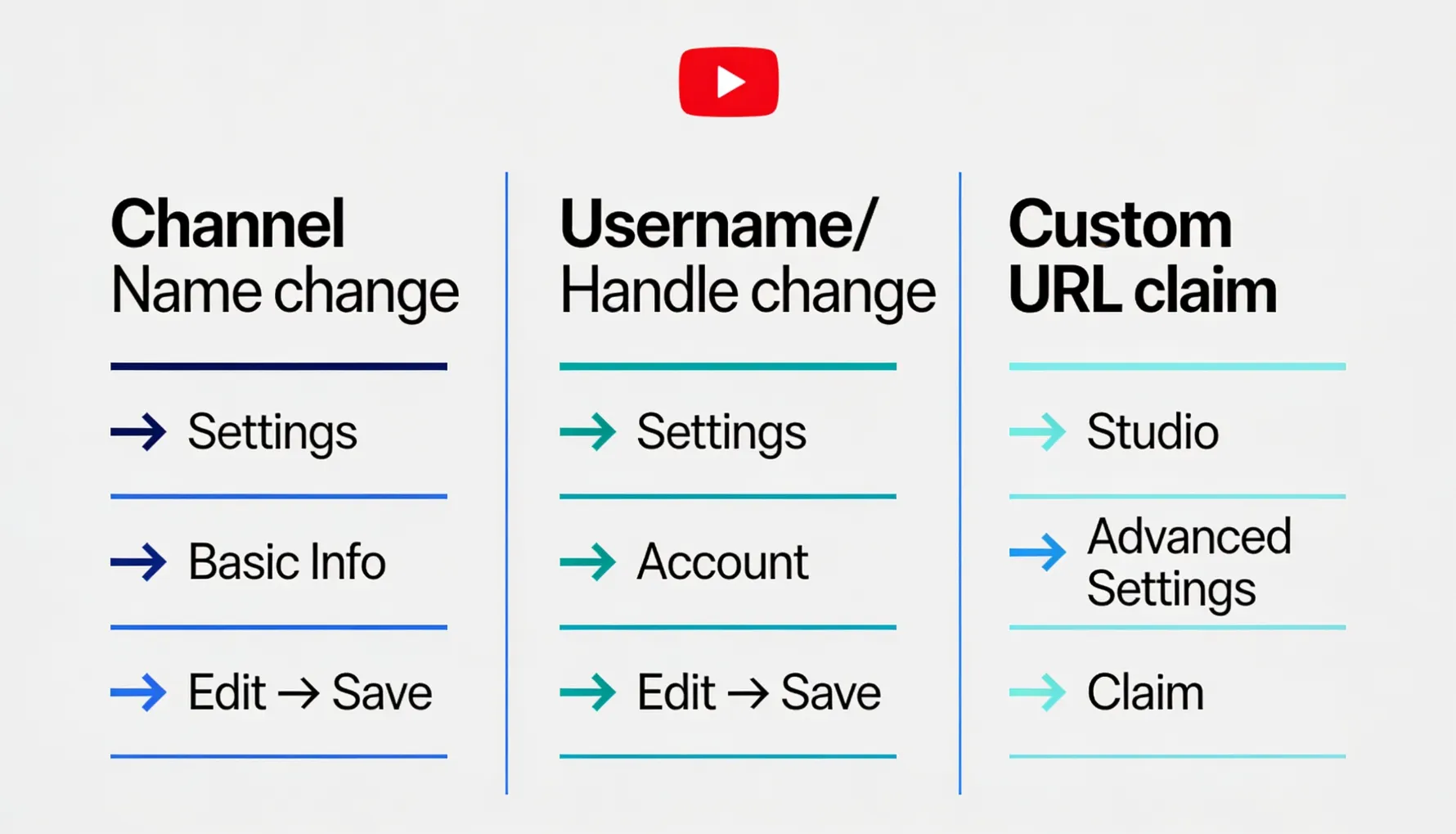
Quick Reference: The Three Changes
Want something showing on your videos? Change channel name. Need to change your @handle? Change username. Want youtube.com/c/yourname? Claim custom URL (permanent — decide carefully). Not sure? Most people just need to change their channel name — it's unlimited, instant, and reversible.
Stop looking for a "rename" button that doesn't exist in the places tutorials suggested. Stop confusing channel name with username with Google account name. Stop thinking it's more complicated than it is. Just go to Settings, find "Channel Name," and change it. That's literally all you need to do. Now go rebrand your channel to something you're actually proud of.
▶️ Ready to Grow Your Newly Rebranded YouTube Channel?
GTR Socials helps creators build real YouTube engagement — views, subscribers, and watch time that helps your rebranded channel reach new audiences and grow sustainably.
Comments (0)