

YouTube has looping built in — it's just hiding in a place most people never think to look. Here's exactly where to find it, plus two alternative methods for power users and section-specific looping.
Two weeks ago, I watched my partner spend fifteen minutes trying to figure out how to loop a YouTube video on desktop.
He was learning guitar and had found the perfect tutorial — a 12-minute video breaking down a complicated fingerpicking technique. He wanted to loop just that section, play it over and over, until the muscle memory clicked. He kept looking for a loop button, right-clicking to see options, checking menus. Nothing obvious appeared.
"How is there no loop button?" he asked, frustrated. "Every music app has this. Why would YouTube make it so hard?"
The truth: YouTube has looping functionality built in. It's just hidden in a place most people never think to look. After two minutes of actual searching, he found it — in the most obvious place imaginable once you know where to look. But for someone not actively looking for it? Completely invisible.
Exactly how to loop YouTube videos on desktop — the native YouTube looping feature, browser extensions if you prefer alternatives, workarounds for looping specific sections, and why YouTube hides this feature in the first place. Whether you're learning something that needs repetition, love a song and want it on endless repeat, or need a video running in the background — you'll know exactly how to do it in under two minutes.
Understanding YouTube's Loop Feature
Before looping, understand what YouTube actually offers — and what it doesn't.
The Hidden Loop Button
YouTube does have native looping — officially built in. The problem: it's not where you'd expect it. There's no obvious "loop" button in the video controls. It's hiding in the right-click menu. Why YouTube hides it: it's not a mainstream feature most users need, YouTube wants to prioritise play, pause, and settings controls, reducing interface clutter, and assumes casual viewers don't need looping. The reality: anyone who needs looping (learners, musicians, people with repetitive tasks) knows to find it. Everyone else doesn't know it exists.
✅ What You Can Loop Native
- Entire videos (full length)
- Works on any YouTube video
- Desktop and mobile
- No special permissions needed
❌ What You Can't Natively Loop
- Specific sections only
- Playlists continuously
- Requires right-click every session
🔧 What Extensions Add
- Section-specific looping
- Persistent across sessions
- Visible one-click button
- Playlist looping
For most use cases, native looping is enough. For specific sections, you'll need the workarounds covered in Method 3.
Method 1: Native YouTube Loop (Easiest)
The official way — takes 5 seconds. No installation, no setup, works immediately.
Open YouTube Video
Go to youtube.com, search for your video or use a direct link. Let the video load completely before proceeding.
Right-Click on the Video
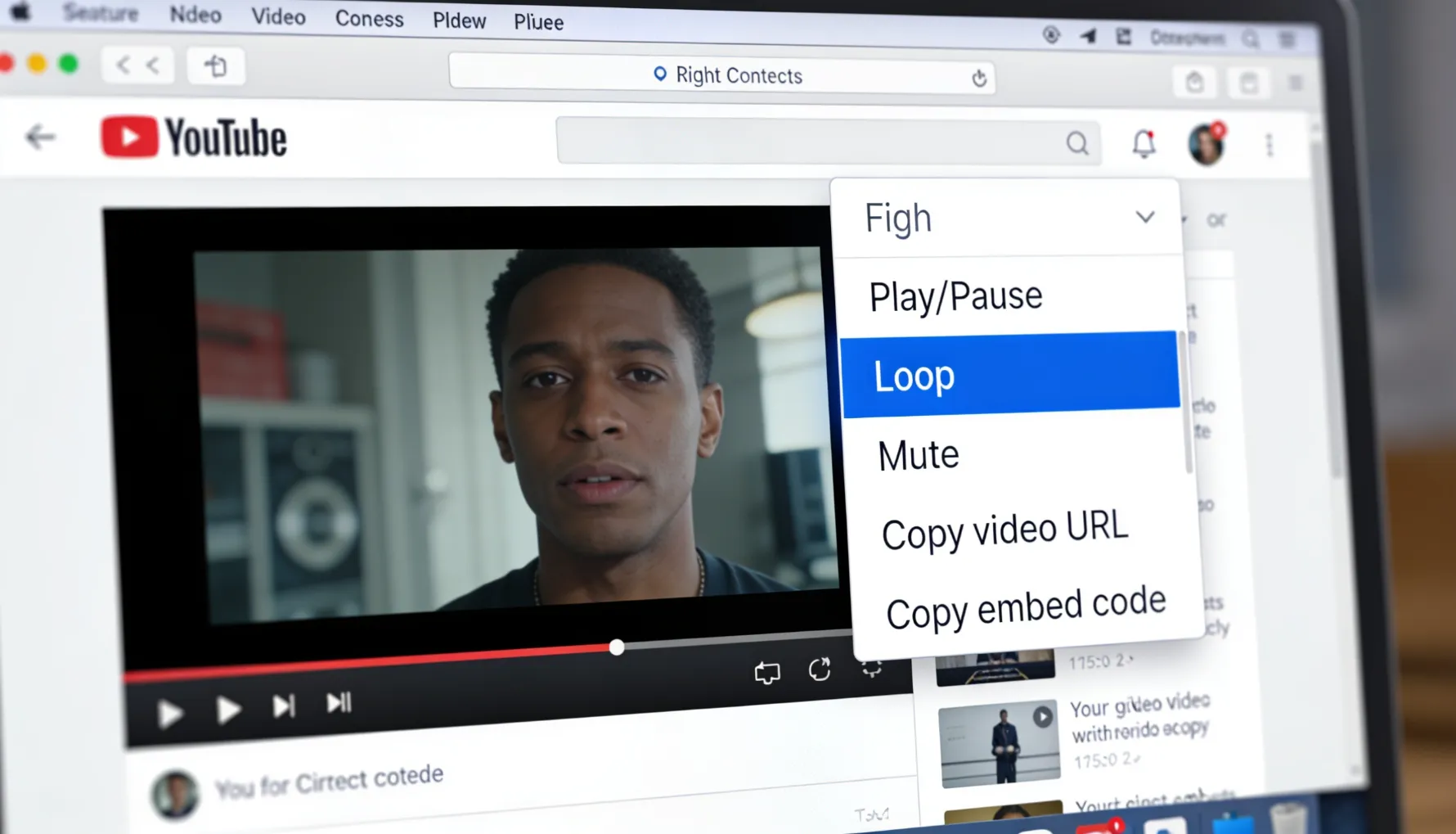
Position your mouse over the video itself — not on the progress bar, not on the control buttons, just the video. Right-click. A context menu appears.
Select "Loop"
In the menu, find the "Loop" option and click it. That's literally the entire process.
Verify It's Looping
Video plays to end and automatically restarts. It will repeat indefinitely until you stop it or toggle loop off.
That's the entire process. Seriously, that's how simple it is.
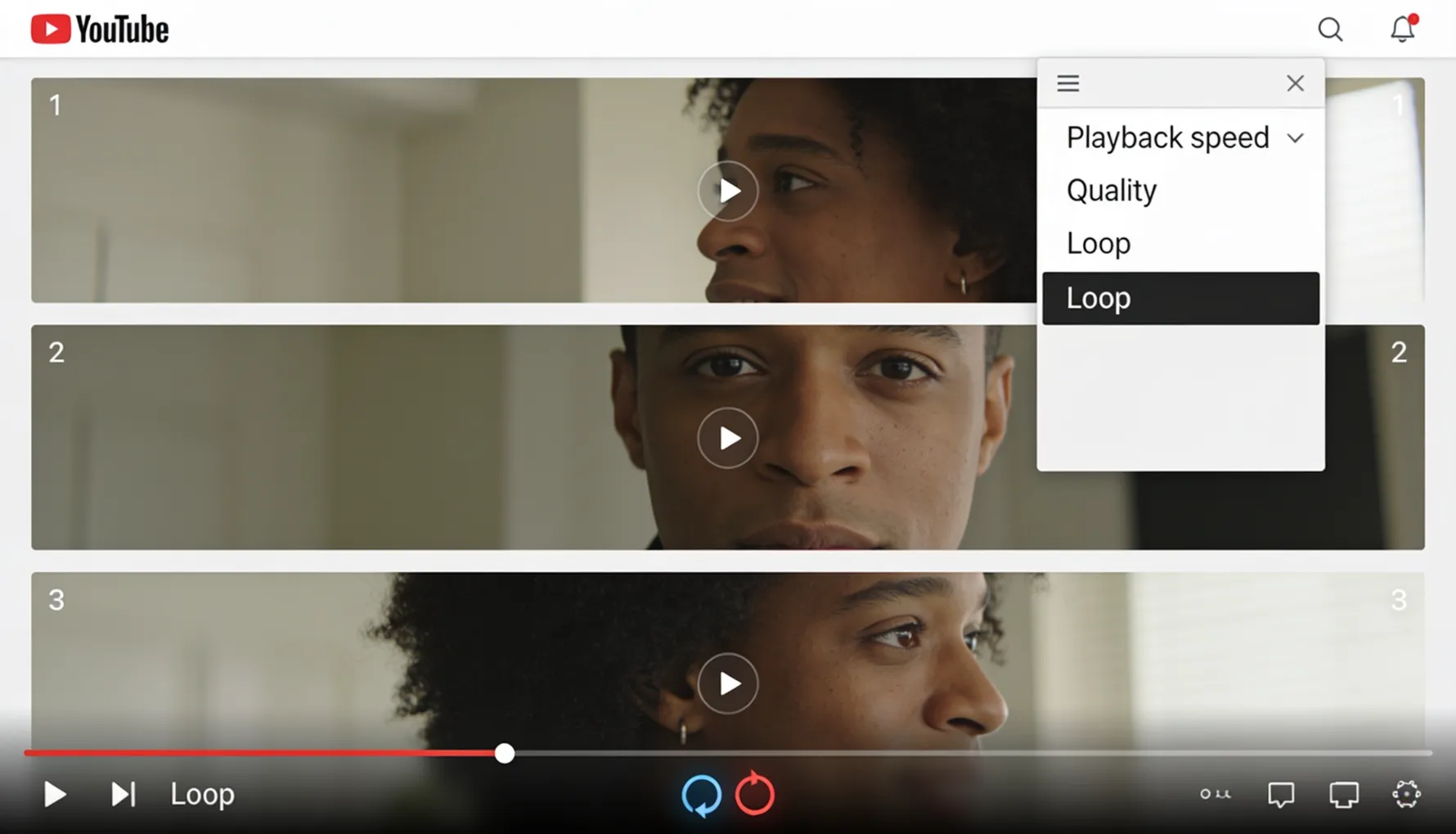
Once activated: the video plays through completely, when it reaches the end it immediately restarts, and continues looping until you stop playback. Volume and quality settings persist. You can pause, play normally, and seek backward — everything works as usual. Important note: looping is only active for that session. If you close the tab or refresh, you'll need to enable loop again.
Turning Off Loop
To stop looping: right-click the video again, click "Loop" again to toggle it off. The video will play once and stop naturally. No other action needed.
Method 2: Browser Extensions (Alternative)
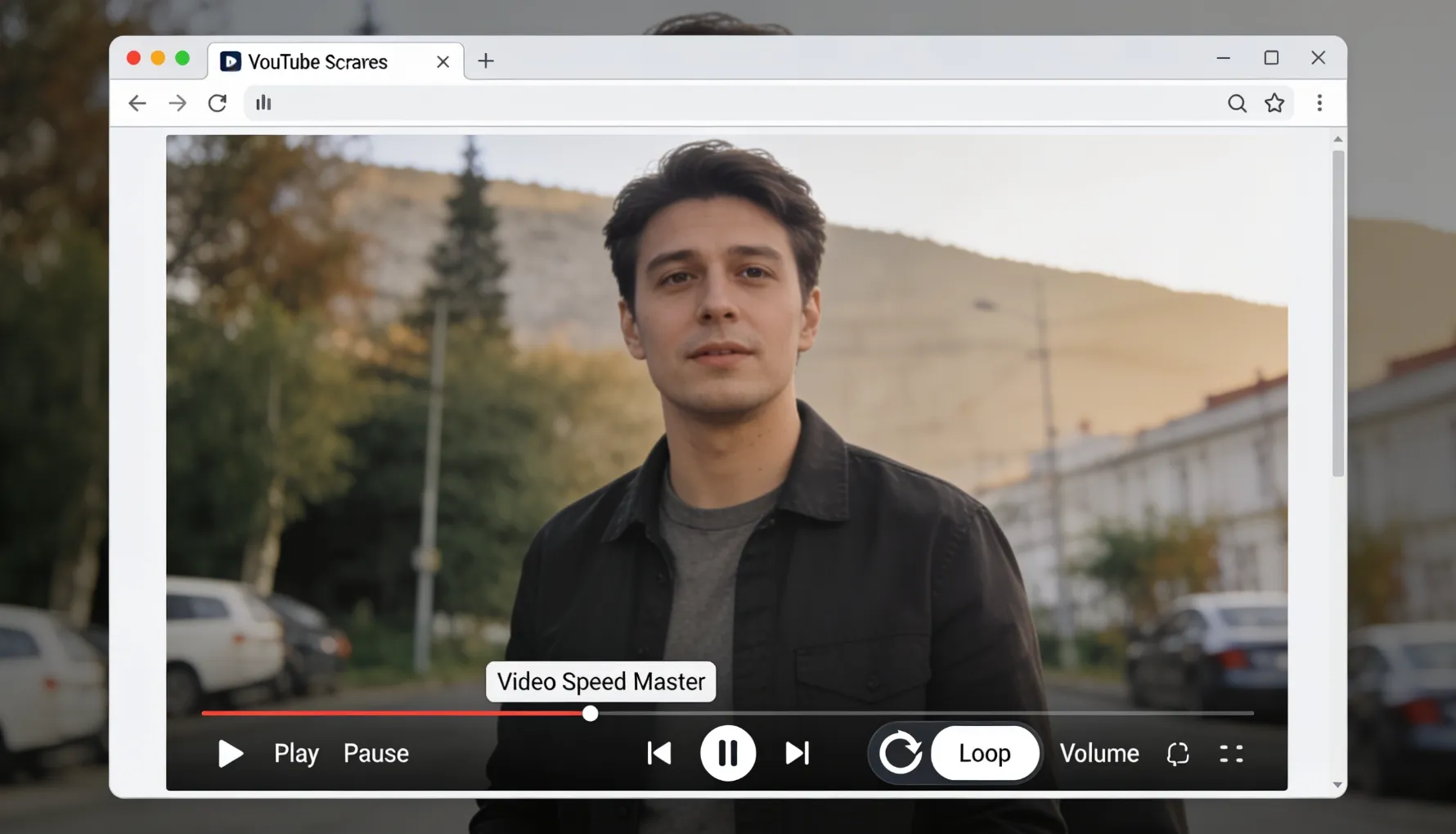
If you prefer a dedicated loop button visible on the player at all times, browser extensions are the answer.
Best Loop Extensions for Desktop
1. Video Speed Master
Available on Chrome Web Store. Adds loop, speed control, and more. Free. One-click loop button appears directly on the player. Works on YouTube and other video sites too.
How to use: install the extension, the loop button appears on your YouTube video player, click to enable or disable. Works on YouTube and other video sites.
2. YouTube Enhancement Suite
A comprehensive YouTube enhancement tool that includes loop functionality. Free with a premium option. Customizable player controls that let you decide exactly what appears on the player.
3. Simple YouTube Loop
Lightweight extension dedicated to looping only. Minimal interface, free. Ideal for people who want only the loop feature without any additional features.
Installing Extensions (Chrome Example)
Search the Web Store
Go to chrome.google.com/webstore. Search for "YouTube loop" or the specific extension name.
Add to Chrome
Click "Add to Chrome," confirm permissions. Extension installs instantly.
Use the Loop Button
Go to any YouTube video. Loop button now appears on the player. Click to toggle looping on or off.
Advantages of extensions: dedicated loop button (easier than right-click), some offer additional features like speed control, can be persistent across sessions, and customizable appearance. Disadvantages: takes up memory, requires installation, can conflict with other extensions, and is browser-dependent. Bottom line: if you loop videos frequently, an extension saves real time. If you loop occasionally, native looping is perfectly fine.
Method 3: Looping Specific Video Sections
Native YouTube doesn't loop sections, but workarounds exist. These are especially useful for learners who want to repeat a specific technique or phrase.
Use YouTube's Built-in Timestamps
For videos where you want to start from a specific point and loop from there. Watch the video and note your desired start time (example: "I want to start from 3:45"). Modify the YouTube URL to include that timestamp using the format: youtube.com/watch?v=VIDEO_ID&t=STARTs — for example, youtube.com/watch?v=dQw4w9WgXcQ&t=225s for starting at 3:45. Then use native right-click loop on that modified URL.
Limitations: this only loops from your start time to the end of the video — not a specific defined section. It still requires native loop, so it restarts from your chosen timestamp each time.
YouTube Repeat Extension (Chrome)
For true section looping with a defined start and end point. The "YouTube Repeat" extension allows setting custom start and end points, looping only that specific section. More complex to set up but works well for learning specific techniques.
How to use: install YouTube Repeat extension, open the video, click to set your loop start point, click again to set your loop end point, click the loop button — the video now repeats only that defined section indefinitely.
Download and Loop Locally
For complete section control without any internet dependency. Download the video using YouTube-dl or similar tools, then use a local media player like VLC to set an A-B repeat loop of exactly the section you want.
Limitations: more complicated setup, potentially violates YouTube terms depending on the content — check copyright before downloading. Only advisable for videos you have rights to use offline.
Common Loop Issues and Solutions
Running into a problem? Here's every common loop issue and exactly how to fix it.
🔍 Problem 1: Right-Click Menu Has No "Loop" Option
- Try a different browser (Chrome, Firefox, Edge)
- Disable browser extensions temporarily and try again
- Check if the video allows embedding (some restricted videos have limited options)
- Try a loop extension instead of the native right-click method
🔄 Problem 2: Loop Enables But Video Doesn't Actually Loop
- Refresh page and enable loop again
- Clear your browser cache
- Restart the browser entirely
- Try a browser extension instead of native loop
- Check if the video source is valid and still active
🔊 Problem 3: Loop Works But Audio Stutters or Glitches at the Restart
- Use an extension that offers smoother loop transitions
- Check your internet connection (buffering can cause this)
- Try lower video quality (reduces stutter on slower connections)
- Try a different browser
- Note: a slight gap between loops is normal and not fixable natively
📋 Problem 4: Need to Loop an Entire Playlist
- Use a playlist extension (search "YouTube playlist loop" in the extension store)
- Loop individual videos in succession manually
- Add playlist to a continuous queue
- Use YouTube Music instead — it has built-in playlist looping support
📺 Problem 5: Can't Loop Live Streams
- Wait for the stream to end and become a VOD (video on demand)
- VODs can then be looped normally
- Check if a stream archive or recording is available
- Contact the creator for a recording if needed
Why YouTube Hides the Loop Feature
Understanding the design choice explains a lot about where the feature lives and how to work with it.
The Design Choice
YouTube deliberately doesn't promote looping because: (1) it's a niche use case — most casual viewers never need it and it doesn't benefit the majority, cluttering the interface for non-users; (2) there's a business model consideration — looping means fewer new video recommendations, fewer video plays equals less ad revenue potential, and people cycling through new videos means more impressions; (3) it's built around casual consumption — YouTube is designed for casual viewing, moving through content is the default behavior, and looping is a "power user" feature; (4) the design is mobile-first — desktop users are a minority, the mobile experience is prioritised, and loop is less intuitive on phones.
YouTube keeps loop because educational use cases genuinely demand it, musicians and learners and researchers need it, hiding it in menus avoids cluttering the main interface for the majority, and it costs minimal resources to maintain. Users who need it know to look for it — and now you do too.
When You'd Actually Loop Videos
📚 Learning and Education
- Language learning (repeat phrase until absorbed)
- Music tutorials (learn technique through repetition)
- Fitness videos (understand movement before exercising)
- Skill development (build muscle memory through repetition)
- Complex concepts (rewatch confusing sections)
🎵 Music and Entertainment
- Favourite song on endless repeat
- Background music while working
- Music production (studying arrangements)
- Ambient videos for relaxation
- Performance practice with backing tracks
🎬 Content Creation and Analysis
- Studying competitor video strategies
- Analysing video editing techniques
- Reviewing performance clips
- Building montages (watching same segment multiple times)
😴 Sleep and Relaxation
- Sleep videos (10-hour compilations looped)
- Meditation music (continuous background)
- Ambient content (rainy day sounds, fireplace, etc.)
- Focus and concentration videos
- Stress relief content
Quick Reference: Three Ways to Loop
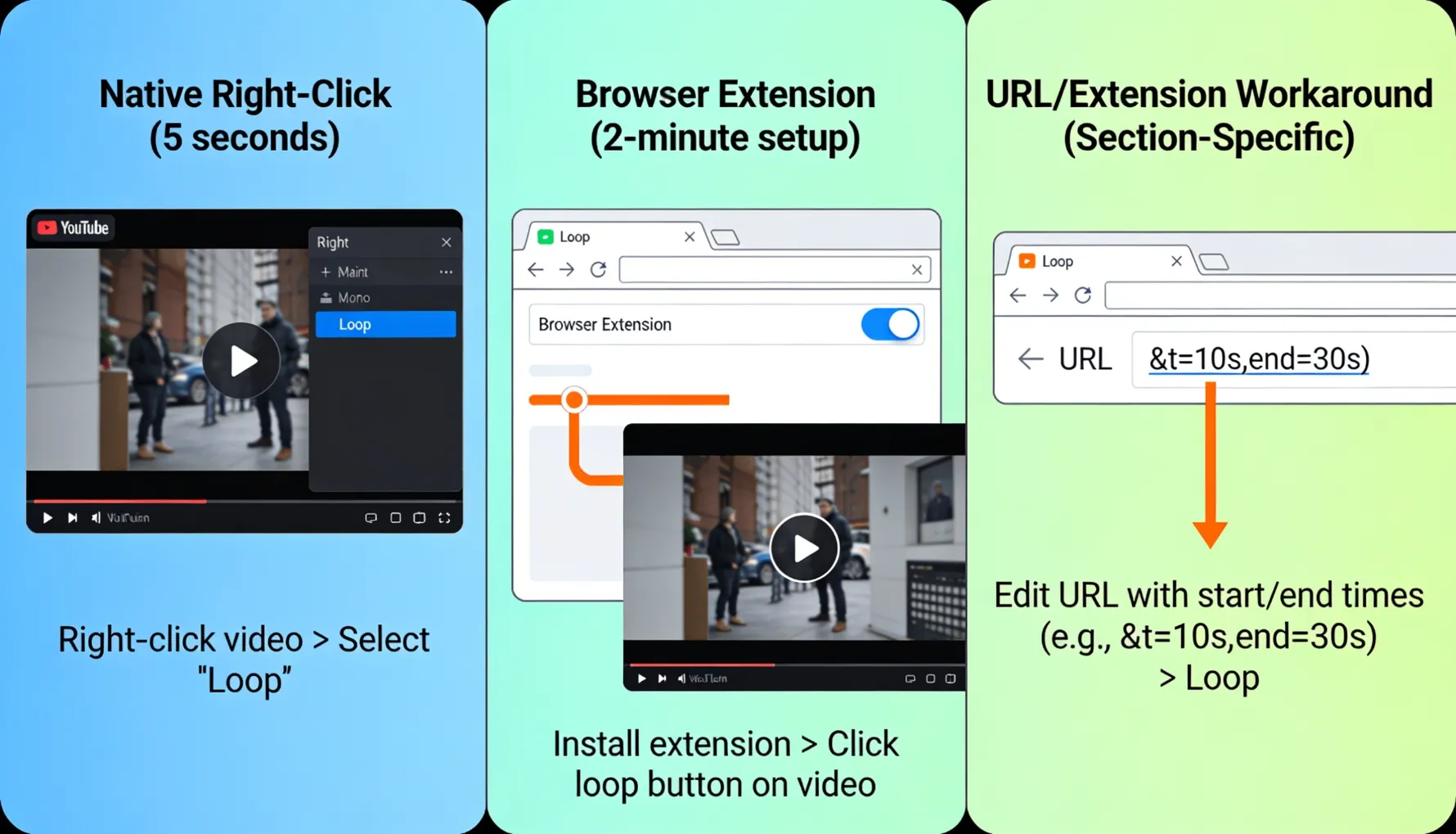
Occasional looping? Native YouTube (right-click method). Frequent looping? Browser extension. Learning a specific section? Use the workaround or a dedicated section-looping extension. Not sure? Start with native YouTube — it's zero setup and it works right now.
FAQ: Looping YouTube Videos
Final Thoughts: It's Simpler Than You Think
My partner, who struggled for fifteen minutes finding the loop button? After discovering it, he said: "I can't believe it's just right-click and loop. YouTube could put a button on the player and I wouldn't have found it any faster. It's so hidden."
The truth about YouTube looping: it's incredibly simple once you know where to find it. YouTube deliberately hides it because most users don't need it. But if you do need it — for learning, music, or any reason — it's built right in.
Open YouTube video → right-click the video → click "Loop" → video repeats indefinitely → click loop again to turn off. That's it. The entire process. For extensions: install once, then just click the loop button any time. For section looping: use timestamp URL or a dedicated extension like YouTube Repeat.
Stop searching for a loop button that doesn't exist on the player controls. Stop overthinking where it could be. Stop assuming YouTube doesn't support looping. Just right-click and select loop. It's that simple. Now go loop whatever you need to watch repeatedly.
▶️ Want to Grow Your YouTube Presence?
GTR Socials helps creators build real YouTube engagement — more views, more subscribers, and the watch time that gets your content recommended to new audiences.
Comments (0)