

📋 Table of Contents
- The Short Answer: Three Ways to Get Your LinkedIn URL
- LinkedIn URLs: Default vs. Custom
- Why Your LinkedIn URL Is Important
- How to Find Your LinkedIn URL on Desktop
- How to Find Your LinkedIn URL on Mobile
- How to Customize Your LinkedIn URL
- Common Problems and Solutions
- How to Use Your LinkedIn URL Effectively
- Privacy Settings: Public vs. Private
- Building Your LinkedIn Presence
The Short Answer: Three Ways to Get Your LinkedIn URL
Finding and optimizing your LinkedIn URL is an important professional skill that you need to know how to do when you update your resume, make email signatures, network at events, or apply for jobs. But many people have trouble with this easy job or don't know they can change it.
If you're in a hurry, here's the quick answer before we get into the details:
Method 1: From Your Profile (Desktop)
- Sign in to LinkedIn
- At the top of your homepage, click on "Me"
- Click on "View Profile"
- Your URL is in the address bar of your browser
- Copy it straight from there
Method 2: On Your Profile (Mobile)
- Launch the LinkedIn app
- Click on your profile picture
- Click on "View Profile"
- Click on the three dots in the top right
- Click "Share via" and then "Copy link"
Method 3: From the Settings on LinkedIn
- Click "Me" and then "Settings & Privacy"
- Go to "Visibility" and then "Edit your public profile"
- The "Public profile URL" section on the right shows your URL
Now, let's talk about why this is important and how to get more out of your LinkedIn URL.
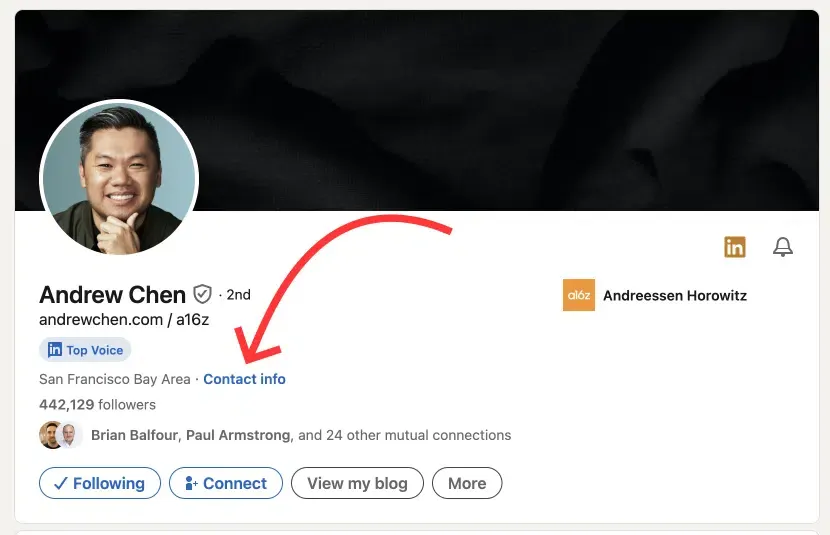
A custom LinkedIn URL strengthens your professional brand across all platforms
LinkedIn URLs: Default vs. Custom
When you first sign up for LinkedIn, the site gives you a default URL that looks like this:
linkedin.com/in/john-smith-8b5a2a1b4That string of letters and numbers at the end? That's how LinkedIn sets you apart from the thousands of other John Smiths on the site. It works, but it's not professional, memorable, or good for your brand.
This is what a personalized URL looks like:
linkedin.com/in/johnsmithlinkedin.com/in/john-smith-marketingRight away, you can see the difference. One looks like a system-generated ID, while the other looks like a choice made on purpose for a personal brand.
Why Your LinkedIn URL Is Important
Let's be honest: most people don't think about their LinkedIn URL until they need it. Then they rush to find it, only to find that it's a jumbled mess of letters and numbers that they can't understand. They either use it anyway or waste time trying to figure out how to change it.
Here's why you should care about this before that time comes:
Professional Credibility
By putting your LinkedIn profile on your resume, business card, or email signature, you're saying something. A clean, personalized URL shows that you pay attention to details and are professional. That messy default link? It makes it look like you haven't thought about how you look online.
These little things add up in job markets where there is a lot of competition or when trying to get new clients. No one will turn you down just because your LinkedIn URL is ugly, but when you add up all the little professional touches (or lack of them), it makes a big difference.
Memorability and Sharing
Think about being at a networking event. Someone wants to know how to get in touch with you on LinkedIn. Which one is easier to remember and share?
"It's linkedin.com/in/sarahchen"
or
"It's linkedin.com/in/sarah-chen-8b5a2a1b4... but you can also just search for Sarah Chen in Seattle; there are probably only a few hundred of us."
A clean URL makes it possible to share by word of mouth. When people hear about you from someone else, it's easier for them to find you. It makes professional networking easier.
SEO Benefits
People don't know this, but LinkedIn profiles do very well in Google searches. When someone searches for your name on Google, your LinkedIn profile often comes up on the first page, and sometimes it's even the first result.
A personalized URL with your name (and maybe your job or area of expertise) adds to the SEO value. It helps Google figure out what your profile is about and can make it easier for people to find you when they search for your name or a specific job.
Brand Consistency
If you want to build a personal brand on more than one platform, you need to be consistent. Using different versions of the same username or URL structure on LinkedIn, Twitter, Instagram, and your own website helps you build a strong professional identity.
People can tell right away that "linkedin.com/in/marketingwithsarah," "twitter.com/marketingwithsarah," and "marketingwithsarah.com" all belong to the same person. That consistency helps people remember you and trust you.
A custom LinkedIn URL strengthens your professional brand across all platforms
Step by Step: How to Find Your LinkedIn URL on Desktop
Let me explain the most reliable way for desktop users in detail:
The Profile Method (Recommended)
- Go to linkedin.com and sign in to your account
- At the top of your homepage, click on the "Me" icon. It's the small picture of you in the navigation bar
- From the dropdown menu, choose "View Profile"
- At the very top of your screen, look at the address bar in your browser
Do you see that URL? This is the URL for your public LinkedIn profile. It should look like this:
https://www.linkedin.com/in/yourname-randomnumbers/To copy it:
- Click once in the address bar
- The whole URL should be highlighted
- Press Command+C (Mac) or Ctrl+C (Windows)
- Or, you can right-click and choose "Copy"
The Alternative Settings Method
This method is helpful if you want to see more than one profile setting at once:
- In the top navigation, click "Me"
- Click "Settings & Privacy"
- Go to the left sidebar and click on "Visibility"
- Select "Edit your public profile"
- Check out the "Public profile URL" section on the right side of the screen
Here is where you can see your current URL and change it if you want to (we'll go over how to do this in more detail soon).
To make sure your URL works, open a new browser window or private/incognito tab and paste it in there. You should be able to see your LinkedIn profile that is open to the public. When people click on your link, this is what they see.
If the link doesn't work or gives you an error, it could be because your privacy settings are keeping your public profile from being seen (we'll talk about this later).
How to Find Your LinkedIn URL on Your Phone
The mobile app works a little differently, but it's still easy to use:
For iOS (iPhone and iPad)
- Make sure you're logged in to the LinkedIn app
- In the top left corner, tap your profile picture
- Press "View Profile"
- In the top right corner of your profile, tap the three dots (•••)
- Choose "Share via" from the list
- Press "Copy link"
Your LinkedIn URL is now in your clipboard and ready to be pasted wherever you need it.
For Android
- Start the LinkedIn app
- At the top, tap on your profile picture
- Click on "View Profile"
- Click on the three dots in the upper right corner
- Choose "Share profile"
- Click "Copy link"
The steps are almost the same on all platforms, which is nice for consistency.
If you often need to share your LinkedIn profile, you might want to add it to your phone's notes app or make a shortcut for text replacement. You can set up a text replacement on your iPhone so that when you type "mylinkedin," it automatically expands to your full URL.
How to Customize Your LinkedIn URL (And Why You Should)
Now that you know how to get to your URL, let's talk about how to make it better. Changing your LinkedIn URL is free, takes less than two minutes, and makes it much more professional.
The Customization Process
- Go to your LinkedIn profile (Me → View Profile)
- On the right side of your profile page, click "Edit public profile & URL"
- On the right sidebar, find the "Edit your custom URL" section
- Click the pencil or edit icon next to the URL you want to change
- Type in the custom URL you want (we'll talk about best practices below)
- Click "Save"
LinkedIn will check right away to see if the URL you want is available. You will have to try a different version if someone else is already using it.
Customizing your LinkedIn URL takes just minutes but provides lasting professional benefits
Best Practices for Custom LinkedIn URLs
Keep it simple and professional:
- Use your real name:
linkedin.com/in/firstname-lastname - If it's relevant, add your credentials:
linkedin.com/in/sarah-chen-cpa - For clarity, add your job title:
linkedin.com/in/john-smith-architect - Add your area of expertise:
linkedin.com/in/marketing-consultant-nyc
Don't make these common mistakes:
- Numbers (unless they are part of your business brand)
- Too many punctuation marks or underscores
- Nicknames that don't match your real name
- URLs that are too long and hard to remember or type
Strategies for Unavailable URLs
If someone else has your favorite URL (which is common with common names), try:
- Adding your middle initial:
john-a-smith - Including your job:
john-smith-engineer - Putting in your location:
john-smith-boston - Using a professional title:
john-smith-mba
The key is to stay professional while also being unique.
Common Problems and How to Solve Them
"My link doesn't work when I share it"
Issue: When you copy and paste your LinkedIn URL into emails or messages, it either shows an error or doesn't load your profile.
Solution: Check your privacy settings. Go to Settings & Privacy, then Visibility, then Edit your public profile. Make sure that your public profile is visible. Links from outside the site won't work if this is off.
"I can't change my URL because the edit button is grayed out"
Issue: You can't click on the edit button to change your URL.
Possible solutions:
- Your account may be too new (LinkedIn won't let you customize it until you've had it for a while)
- You may have just changed your URL (there's a limit on how often you can do this)
- Try accessing it from a computer instead of a phone
- Make sure you have a regular LinkedIn account, not one that is limited or restricted
"Someone else already has my desired URL"
Issue: Someone else is using the LinkedIn URL you want.
Solution: This happens a lot with common names. Try the different options mentioned above. Keep in mind that the goal is to make things clear for professionals, not to have the shortest URL possible. If john-smith isn't available, john-smith-consultant works just as well.
"My URL still shows random characters even after I changed it"
Issue: You changed your URL, but when you share it, it still shows the old default version.
Solution: You might be copying from the wrong place. When you look at your profile, always copy from Settings & Privacy → Edit your public profile, or from the address bar of your browser. Also, try clearing your browser's cache and trying again.
How to Use Your LinkedIn URL Effectively
Here's how to make the most of your clean, professional LinkedIn URL now that you have it:
On Your Resume
Put your LinkedIn URL in the contact information section at the top of your resume. Make it look nice:
Email: [email protected] | LinkedIn: linkedin.com/in/sarahchenLinkedIn: https://www.linkedin.com/in/sarah-chen-8b5a2a1b4On a resume, the "https://www." is just extra visual noise. The clean version looks better and is easier to read.
In Email Signatures
Your email signature is a great place to put your LinkedIn profile:
Sarah Chen
Director of Marketing
[email protected] | (555) 123-4567
linkedin.com/in/sarahchen
Most email clients will automatically turn this into a clickable link.
On Business Cards
If you're making business cards, make sure to include your LinkedIn URL. Since space is limited, the shortened custom version is a must. No one is going to type in "linkedin.com/in/sarah-chen-8b5a2a1b4" from a business card.
In Social Media Bios
If you want to build a professional brand, you should link to your LinkedIn profile in your Twitter, Instagram, or TikTok bios. People can find and connect with you across platforms more easily when things are consistent.
When Networking
If someone asks how to get in touch with you professionally, saying "I'm on LinkedIn at linkedin.com/in/sarahchen" is much better than saying "just search for me, I'm Sarah Chen, there are probably thousands of us."
Your LinkedIn URL works across all professional touchpoints to build your brand
Privacy Settings: Public vs. Private Profiles
When people visit your URL, you can control what they see by knowing how to use LinkedIn's privacy settings:
Public Profile Settings
When people who aren't LinkedIn members go to your URL, they see your public profile. You can choose exactly what shows up:
- Go to Settings & Privacy > Visibility > Edit your public profile
- You can turn on or off different parts, like the headline, summary, experience, education, and so on
- Use the view toggle to see how your profile looks to the public
Why You Might Want to Limit Public Visibility
Some professionals keep their public profile limited to protect their privacy:
- They work in fields that are sensitive
- They are worried that recruiters or competitors will be able to get their information
- They want to be able to choose who can see their full work history
But if you limit how many people can see your LinkedIn URL, it will be harder for people to find you and the value of sharing it will go down.
The Balanced Approach
A fully public profile is good for most professionals. It helps you network, find new opportunities, and get the most out of your LinkedIn profile. If you're worried about your privacy, think about:
- Keeping your profile public but only sharing certain information
- Using LinkedIn's privacy settings to choose who can see when you look at their profiles
- Instead of limiting who can see your profile, think carefully about connection requests
Building Your LinkedIn Presence Beyond Just a URL
The first step is to have a great LinkedIn URL. Actually making a presence that makes people want to click on that URL? That's when the real work starts.
The truth is that your LinkedIn profile is only worth as much as the interactions it gets. Having the perfect custom URL won't help you much if your profile only has 147 connections and not much activity.
The Challenge of Growing on LinkedIn
Like any other social media platform, LinkedIn has a cold start problem. If you're new or don't know many people:
- Almost no one sees your posts
- There aren't many views of your profile
- Recruiters and potential clients scroll past you
- It seems impossible to build momentum
This is a frustrating cycle: you need engagement to get attention, but you need attention to get engagement.
Strategic Growth Approaches
This is where a lot of professionals start to think strategically. Investing in your LinkedIn presence can speed up your career just like investing in business cards, a professional website, or a good resume.
Companies like GTRsocials.com understand this challenge. They help professionals build strong LinkedIn foundations—connections, profile engagement, and visibility—that tell the platform's algorithm that your content and profile deserve to be seen by more people.
In a practical sense, would you rather spend a year slowly making connections one at a time, posting into the void, and hoping something sticks? Or give yourself a strategic edge that lets you focus on making useful content and building real relationships while someone else takes care of the basic visibility?
The most important thing is to combine real professional development with strategic growth support. Your LinkedIn URL is the door. Once people walk through it, they stay interested because of the real value and expertise you offer.
Maintaining Your LinkedIn Presence
Once you've found, customized, and started sharing your LinkedIn URL, keeping it up to date will make sure it keeps giving you value:
Regular Profile Updates:
- Update job changes within a week of starting a new position
- Add new skills as you learn them
- Refresh your headline and summary every 6-12 months
- Add recent projects and achievements
Consistent Activity:
- Post or share content at least once a week
- Leave meaningful comments on others' posts
- Respond quickly to messages and connection requests
- Publish long-form articles occasionally to demonstrate thought leadership
Strategic Networking:
- Connect with colleagues, clients, and industry peers
- Personalize connection requests with context
- Nurture relationships by engaging with others' content
- Be generous with recommendations and endorsements
The Bottom Line: Your LinkedIn URL Is Your Digital Business Card
Finding your LinkedIn URL is easy. Customizing it takes two minutes. But knowing how to use it effectively and understanding its strategic value? That's what makes the difference between professionals who have a LinkedIn profile by accident and those who intentionally build a strong professional presence.
Your LinkedIn URL should be:
- Memorized (yes, really memorize it)
- Included in everything you create for work
- Shared with confidence in networking situations
- Customized to fit your professional personal brand
- Backed by an active and valuable LinkedIn presence
If someone asks how to connect with you professionally, you should give them your LinkedIn URL right away. Your LinkedIn profile should support and enhance what's on your resume when you're applying for jobs. Your LinkedIn profile should be easy to find and look great when potential clients or employers Google you.
This isn't about collecting connections like trading cards or using metrics to make yourself look good. It's about being purposefully present in the digital professional world, where more and more opportunities, relationships, and careers are being built.
Do this right now:
- Use the steps above to find your current LinkedIn URL
- If you haven't already, customize it (seriously, do this today)
- Add it to your resume, email signature, and business cards
- Include it in your other social media bios
- Review your LinkedIn profile to ensure it's current and engaging
- Share it confidently the next time someone asks how to connect professionally
And if you really want to build a LinkedIn presence that leads to real opportunities, think about how you'll overcome that initial visibility challenge. Having a strategy is more important than just hoping the algorithm will notice you eventually. You can succeed through consistent effort over months or by using services like GTRsocials.com to accelerate the process.
Your LinkedIn URL is ready. The question is: what will people see when they click it?
🚀 Ready to Build a LinkedIn Presence That Matters?
Your optimized LinkedIn URL is just the first step. Building real professional visibility requires strategic growth combined with authentic value. GTR Socials helps professionals overcome LinkedIn's cold start problem with genuine engagement that signals your profile deserves attention.
Comments (0)